Create an Unattached Work Order
An unattached work order is not associated with a specific map feature. It is recommended that all unattached work orders are eventually attached to an entity.
- Select New.
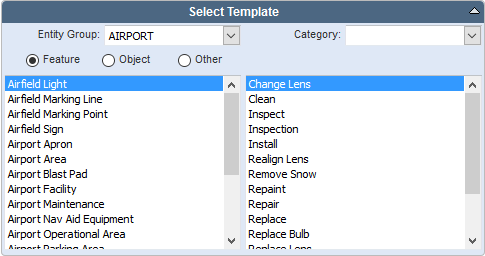
- Select the desired Entity Group.
- Select a Category. This is a way to further filter templates. It is set up by the administrator.
- Select Feature, Object, or Other. While features or objects (related tables) are found in the geodatabase, the others category allows work order templates to be created on anything stored in the Cityworks database.
- Select the asset type. Work order templates associated with the asset type will display on the right.
-
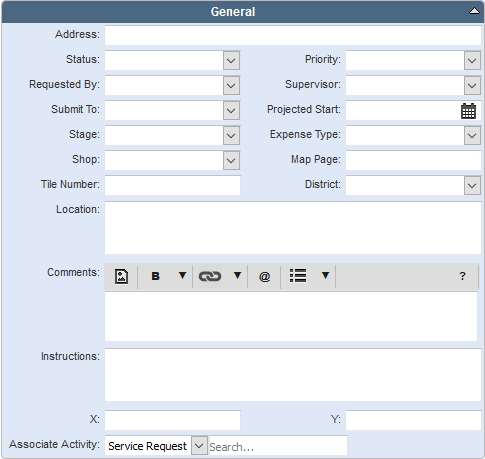
- Enter information in the General panel.

See Add Assets to a Work Order for more information on attaching this work order to an asset.

Documentation Feedback Form
Please give us feedback about this Cityworks guide.
If you have a feature enhancement request, please see the Ideas page on MyCityworks.
Last updated 1/6/2020.
Copyright© 2010–2020 by Azteca Systems, LLC. All rights reserved.