Navigation Fields
The following fields are found on the Navigation map tool.
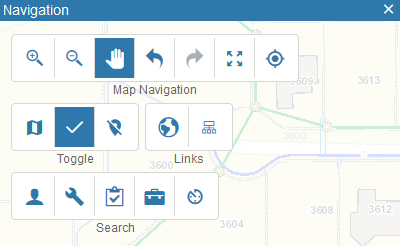
- In:
- Out:
- Pan:
- Previous: Click to view the previous map extent.
- Next: Click to view the next map extent.
- Full:
- Overview Map:
- My current location:
- Show Map Coordinates: Click to view the coordinates of your mouse on the map.
- Remove pins:
- Event Layer: Click to open the event layer page.
- Related Assets: Click to view related assets.
- Search: Click to search for work activities in the current map extent.
- Requests: Click to search for service requests.
- Work Orders: Click to search for work orders.
- Inspections: Click to search for inspections.
- Permits: Click to search for PLL permits.
- Asset History: Click to view the work history for the selected assets.
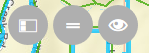
- Dock Tool Panels to Side/Top: Click to dock the Selection and Navigation tools panels to the side or top of the map.
- Show All/Minimal Tool Buttons: Click to show all tool buttons or the minimal amount of buttons needed on the Selection and Navigation tools panels.
- Show/Hide Tool Panels: Click to show or hide the Selection and Navigation tools panels. When hidden, there is a slash through the icon.