Add or Edit a Report List
The Report List widget provides quick access to reports containing specific domain and database information.
- Click Edit below the panel name.
- Select Report List from the New Widget drop-down list.
- Enter a Width. This can be a percentage or the number of pixels.
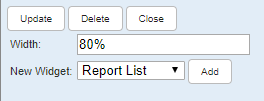
- Click Add.
- Click Edit on the widget.

- Fill in the fields to define the report list. See Report List Fields for more information about these fields.
- Select the desired reports.
 TIP: Multiple reports can be selected, or select all reports by selecting the check box next to the search field at the top of the list.
- Click Update to save the changes, Delete to delete the widget, or Close to close the panel.
 NOTE: Reports can be exported to a Crystal Report1 (RPT), PDF, Microsoft Excel2, Microsoft Word, Rich Text Format (RTF), Character Separated Values (CSV), or XML format. They can also be printed from this widget.
Widgets can be edited by clicking Edit in the upper-right corner of the widget. To delete any reports from the widget, clear the check box next to the report, and save.