Add a New Asset to the Map
New assets can be added to the map to show what really exists.
 TIP: Make sure that the layer you're editing is visible in the Legend so you can view the assets on the map.
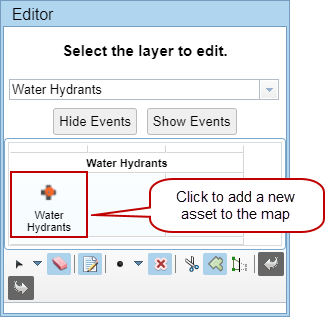
If the asset is a line, you have the option to draw the asset on the map by Freehand Polyline or Polyline.
- To draw the asset manually, select Freehand Polyline,
- To draw the asset in a straight line, select Polyline and
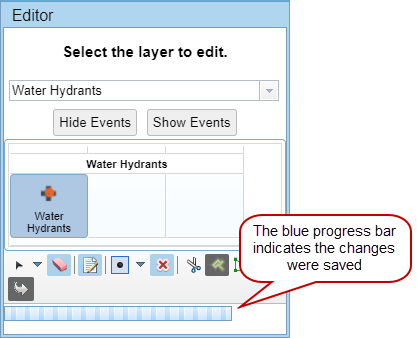
A blue progress bar appears in the Editor panel to indicate edits are saved.
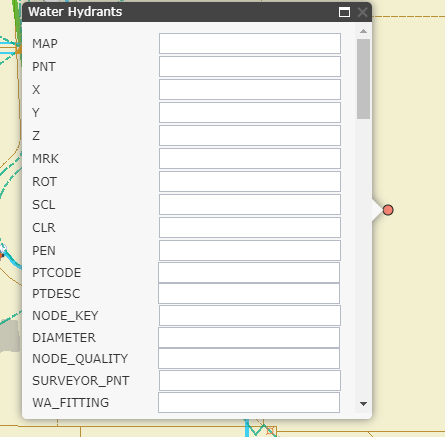
- Enter relevant information in the attribute panel that appears. The fields in this panel are unique to the asset.
The object ID is automatically created for any asset added.
- To change the position of the asset,
TIP: