Details Panel Fields
The Details panel shows additional information about the work order.
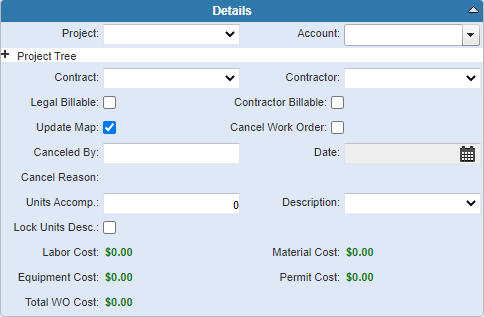
- Project: Select a project from the drop-down list to tie the work order to a project
- Account: Select an account number. The contents of this list are populated by the administrator in Designer under Preferences > Custom Codes > GLACCOUNT. See Configure Custom Codes Preferences in the Designer Office Companion 23 Guide for more information.
- Contract: Select a contract. See Contracts in the OpX 3.2 Guide for more information. Note that this version of the app is only compatible with Cityworks 23 and newer and needs to be accessed from the Cityworks 23 site.
- Contractor: Select a contractor.
- Legal Billable: Select if the work order is legal billable.
- Contractor Billable: Select if the work order is billed to a contractor.
- Update Map: This field can be used as a flag for whatever purpose your organization wishes. For example, it could be used for instances when the map or GIS need to be updated. The administrator can perform a search for work orders that have this field selected.
- Cancel Work Order: Select to cancel the work order.
- Canceled By/Date: If the work order has been canceled, these fields are automatically populated with the login of the user and today's date. The date cannot be updated or modified on either the initial save or any subsequent edit.
- Cancel Reason: Enter the reason the work order was canceled.
- Units Accomplished: Enter the number of units accomplished.
- Description: Select a description of the units. The contents of this list are populated by the administrator in Designer under Preferences > Custom Codes > UACCDESC. See Configure Custom Codes Preferences in the Designer Office Companion 23 Guide for more information.
- Lock Units Desc.: Select to lock the units of measurement so that it cannot be changed.