Projects Fields
The following options are found in the Summary View drop-down list on the map projects page:
- Projects: Select to view a list of projects.
- Project Budgets: Select to view the budget for the projects, including the amount expended and the remaining budget.
- Work Orders: Select to view the work orders associated to each project.
- Service Requests: Select to view the service requests associated to each project.
The following fields are found on the work activities page:
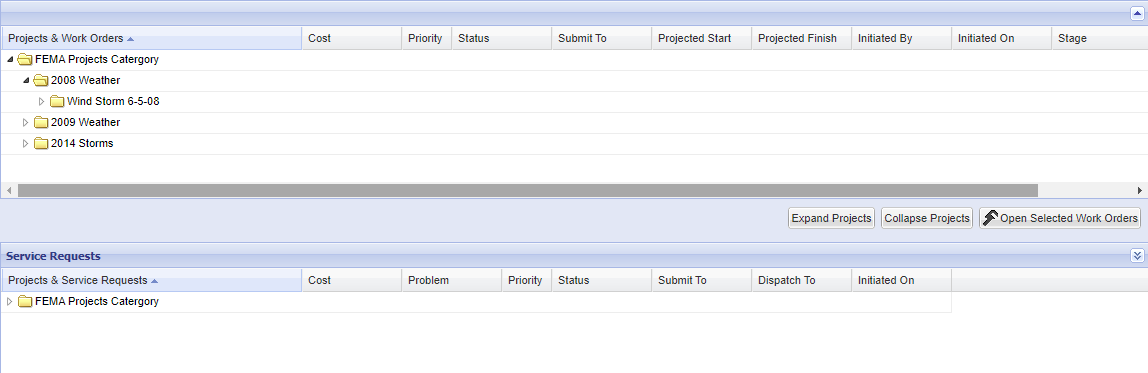
- Expand Projects: Click to expand the list of work orders or service requests. You can also click the arrow next to the folder to expand the list.
- Collapse Projects: Click to collapse the list of work orders or service requests. You can also click the arrow next to the folder to collapse the list.
- Open Selected Work Orders: Select the desired work orders and click the view them.
- Open Selected Service Requests: Select the desired service requests and click to view them.
The following fields are found on the create project toolbar:

- New Project: Click to create a new project.
- Open Project: Click to open the selected project.
- View: Click to view more options.
- Show All: Click to fully expand the hierarchy to show all the projects.
- Show Selected: Click to show just the selected project.
- Unselect All: Click to unselect the currently selected projects.
- Edit: Click to view more options.
- Cut: Click to cut the project.
- Copy: Click to copy the project.
- Paste: Click to paste the project.
- Delete: Click to delete the project.
- Print this page: Click to print the page you're currently viewing.
- Domain: Select which domain to view the projects from.
- Summary View: Select the view.
- Projects: Click to view the list of projects.
- Project Budgets: Click to view budget information for all the projects, including the amount expended and the remaining budget.
- Work Orders: Click to view the work orders attached to the projects.
- Service Requests: Click to view the service requests attached to the projects.
 NOTE: Proper permissions must be granted by the administrator to access all functions.
The following fields are found on the General panel:

- Name: Enter the name of the project.
- Description: Enter a description.
- Budget/No Budget: Enter the budget if there is one. If there is no budget, select No Budget.
- Approved By: Select the employee who approved the project.
- Assigned To: Select the employee assigned to the project.
- Start Date: Enter the date the project started.
- Finish Date: Enter the date the project finished.
- Last Modified: The date the project was last modified. This is automatically generated.
- Status: Select the current status of the project. The contents of this list are populated by the administrator in Designer under Preferences > Custom Codes > PRJTSTAT.
- Active Project: If selected, the project is marked as currently active, and shows up in the project tree hierarchy on service requests and work orders.
- Canceled: Select if the project is canceled.
- Comments: Enter any comments related to the project.
This toolbar displays when a new project is being created.

- Manager: Select to return to the main projects view.
- Project: Select to return to the project's General panel.
- Functions: Select to access more functionality within the project.
- Work Activities: Select to show all service request and work order activities associated to the project.
- Attachments: Select to add photographs, diagrams, copies, receipts, or other documents.
- Audit Log: Select to show all of the edits made to the project.
- Security: Select to access the Project Security panel.
- Print: Select to print the page.
- Save: Select to save the project.
NOTE: Proper permissions must be granted by the administrator to access all functions.