Add or Edit a Custom Data Field
Custom fields can be added for contractors, employees, equipment, or material.
 NOTE: Custom fields can be added to service request templates or work order templates. Click Custom Fields under either the Service Requests or Work Orders tab to access those custom fields.
- From the home page, click Configure and click Custom Data Fields.
Select a custom field category from the Table drop-down list to view any existing custom fields. You can filter the list by clicking Filter records and entering the first few letters of the custom field.

- Select the Table you want to add the custom field to.
- Click Add record to add a new custom field.
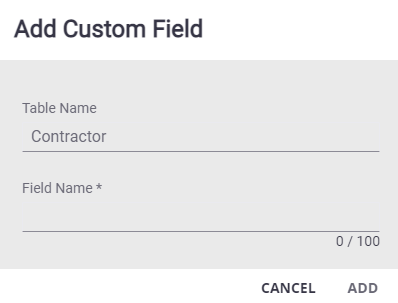
- Enter the Field Name and click Add.
The new custom field displays in the Custom Fields panel.
- Select it and finish editing the details of the custom field in the Custom Field Details panel. For more information on adding a specific type of custom field, see Add a Text Custom Data Field, Add a Code Custom Data Field, Add a Date Custom Data Field, and Add a Numeric Custom Data Field.
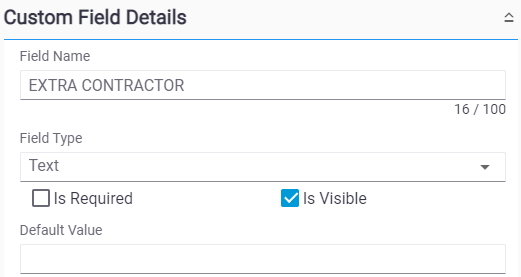
- To edit a custom field, open it from the Custom Fields panel and make the desired changes.
NOTE: Admin automatically saves the changes you make. A message appears at the bottom of the page when you make changes.