Add a Validation Event
Administrators can create a Validation Event, which consists of a group of conditions that are validated on a work activity based on the selected Events.
-
From the home page, click Configure and click Field Validation.
-
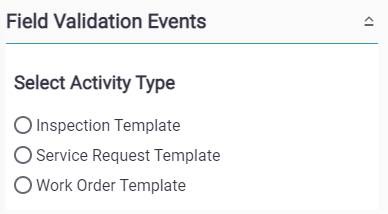
Select either Inspection Template, Service Request Template, or Work Order Template.
-
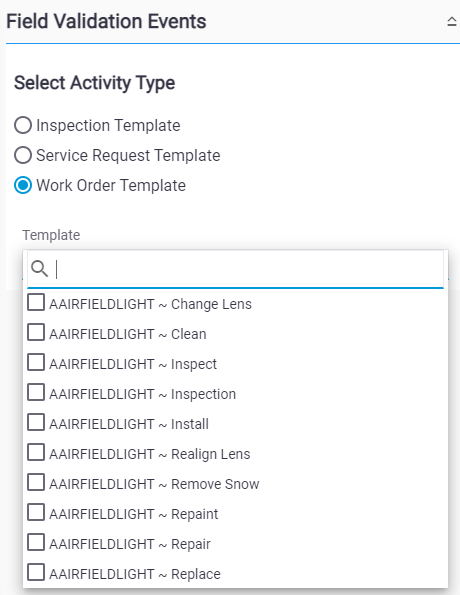
Select the Template you'd like to add a Field Validation Event to.
-
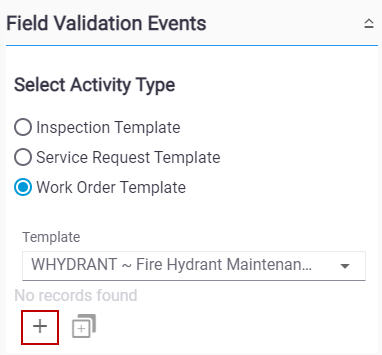
Select Add record.
-
Enter the Event Name and click Add.
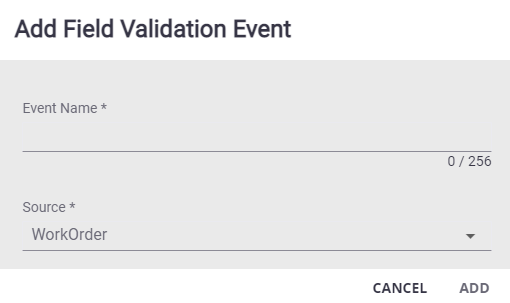
The Events determines when the conditions are validated on the work activity template.
-
Select cancel, close, and/or update from the Events drop-down list.
-
Select the Frequency.
-
Always: Select to always trigger the validation when the work activity is canceled, closed, and/or updated.
-
Specific Condition: Select to specify a condition that the work activity must meet when the work activity is canceled, closed, and/or updated to trigger the validation.
-
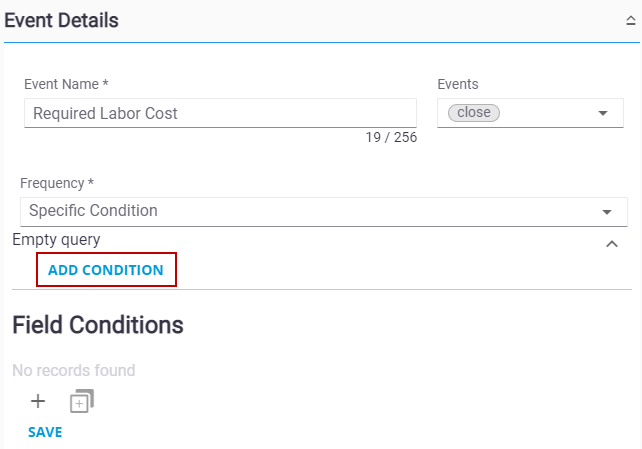
If you are adding a specific condition, click Empty query and click Add Condition.
-
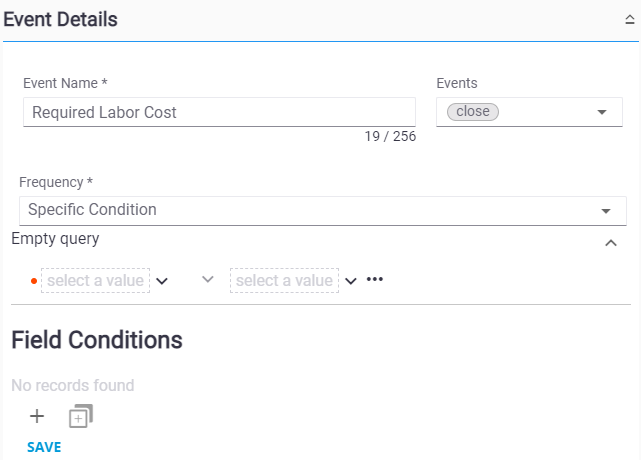
Select fields from the drop-down lists to construct a condition.
-
Click Save.
See Add or Edit a Field Condition to add Field Conditions to the event.