Add Attachments to a Work Order Template
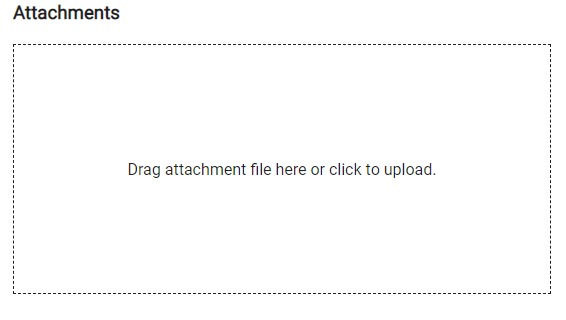
The Attachments section allows you to add attachments that are automatically added to new work orders created from this template.
- Select the Group and Type on the Work Activity Templates panel to display work order templates associated with the selected asset type.
- Select a work order template.
- Click the General tab on the Template Details panel.
- To add an attachment, either click the box in the Attachments section to browse to the file or drag a file and drop it where it says Drag the plugin file here or click to upload.
- To remove an attachment, click the delete icon next to it.
- To remove the attachments, click Remove all attachments.
- Click Delete to confirm that you want to delete the attachment(s).
 NOTE:
NOTE: