Add Custom Inspections to a Work Order Template
A custom inspection can be included on the work order template so that the inspection is automatically created whenever a work order of this type is created.
|
|
 PREREQUISITES:
- Click the Template Activities tab on the Template Details panel.
Existing inspections display under Default Inspections.

- Click Add record under Default Inspections to add an inspection to the template.
A list of inspection templates displays. You can filter the list by typing the first few letters of the inspection template in the search box at the top.
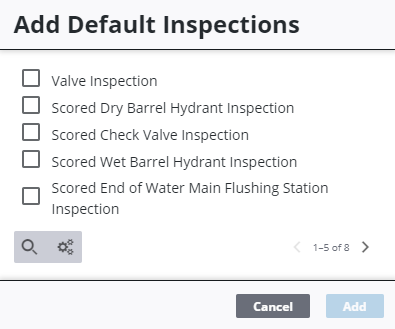
- Select the desired template and click Add.
- Select the template to finish entering the Default Inspection Details.
- From the Event drop-down list, select Initiate if you want the inspection interval to begin from the date the work order is initiated, or select Close if you want the inspection interval to begin from the date the work order is closed.
- Select Auto Create to automatically create the inspection after the determined Interval of time from when the work order is created or closed, depending on the Event option you selected.
- Enter the Interval of time after which the inspection is closed.
- Select the Interval Unit (Days, Weeks, Months, or Years).
For example, if you select Initiate and Auto Create, enter an Interval of 2, and select an Interval Unit of Weeks, the inspection is automatically created 2 weeks after the work order is created.
 NOTE:
NOTE: