Add Material to a Work Order Template
Material or contractor material can be added to the work order template so that it is automatically included on any work order created from the template. The material costs are listed on the work order as an Estimated cost, which, if accurate, can be moved to the Actual cost.
|
|
 PREREQUISITES:
 TIP: You can filter the list of records displayed. See Filter Records for more information.
- Select a work order template.
- Click the ELM tab on the Template Details panel.
Existing materials display under Estimated Material Costs. Estimated ELM Costs shows the combined equipment, labor, and material costs added to the work order template.
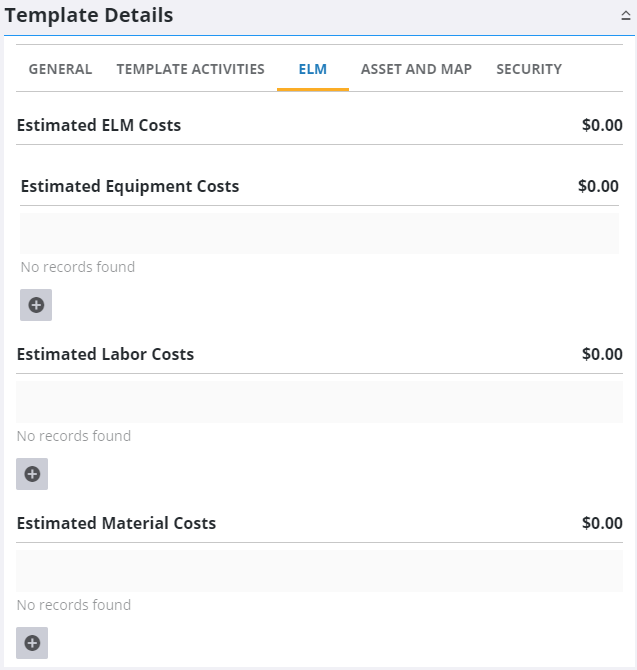
- Click Add record to add material.
Material and Contractors can be filtered by typing the first few letters or numbers of the material or contractor name in the search boxes.
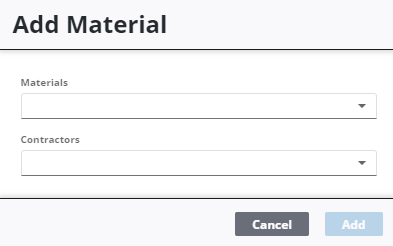
- Select the material from the Materials drop-down list.
- If desired, select a contractor from the Contractors drop-down list to add material cost related to a specific contractor.
- Click Add.
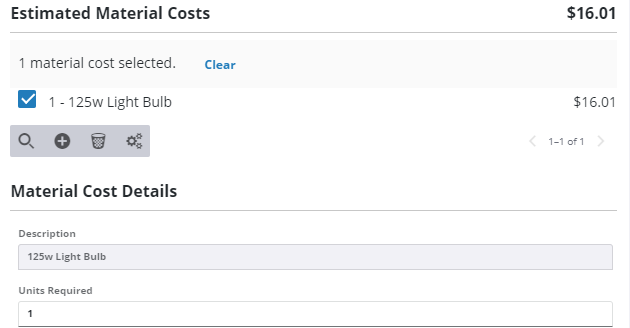
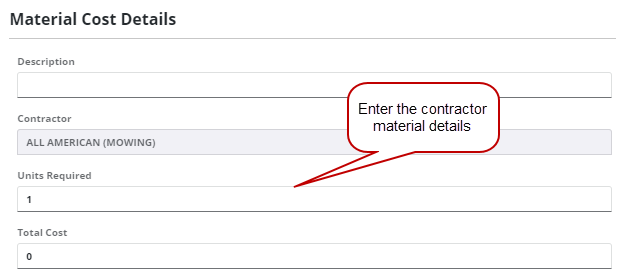
The materials display in the Estimated Material Costs section. If you selected a contractor, the material description is blank and the cost listed as $0.00 because you have not yet added its details.
- Select the material to finish entering the Material Cost Details.
- If you select a piece of material unrelated to a contractor, enter the number of Units Required for the template in the Material Cost Details section.
- If you select a piece of material associated to a specific contractor, enter the number of Units Required and the Total Cost of the material for the template.
 NOTE: Admin automatically saves the changes you make. A notification pops up at the bottom to verify changes have been saved.