Remove a Checklist Line Item
Checklist line items may be removed.
|
|
 PREREQUISITES:
 IMPORTANT: Cityworks strongly recommends that you do not remove a checklist line item if it has been used on a case because it removes the link in the Cityworks database and leaves orphaned case data. Instead, make the checklist line item inactive to preserve the historical data associated with it.
- From the home page, click PLL and click Checklist Line Items.
 TIP: You can filter the list of records displayed. See Filter Records for more information.
- Select the check box next to the checklist line item you want to remove.
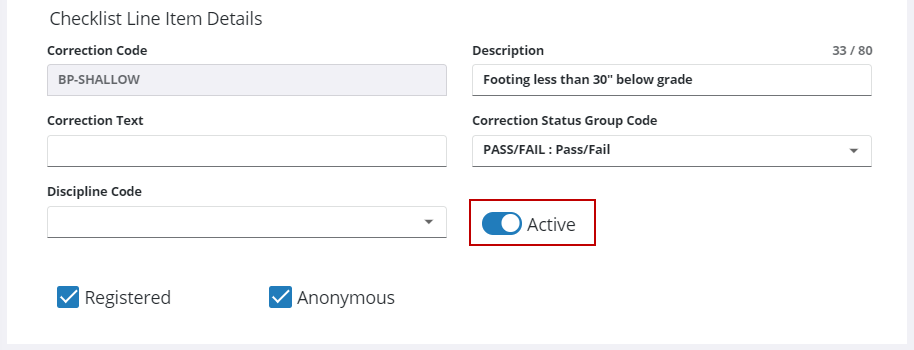
- Turn off Active on the Checklist Line Item Details panel. This allows you to deactivate the item so it cannot be added to a case template, but it can still be used as a search parameter and is still listed with historical data.
If no historical data is associated with the checklist line item, remove it from the Checklist Line Items panel.
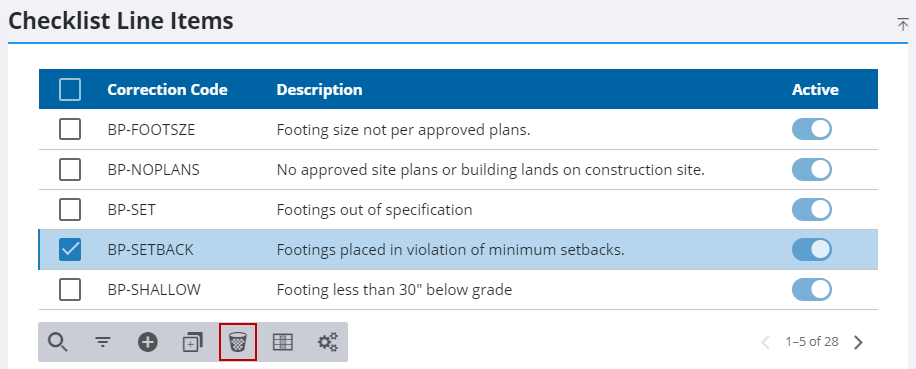
- On the Checklist Line Items panel, select the item you want to remove and click Delete selected records.
- On the Delete Checklist Line Items panel, click Delete.