Add Interval Actions
Interval readings should be configured for values that are constantly increasing to generate a work order at a specified interval, such as runtime hours, mileage, etc.
- From the home page, click GIS and click Asset Readings.
- In the Assets panel on the left, select the asset Group and Type.
The Actions tab in the Readings panel is used to set up threshold or interval actions and also displays existing actions.
 TIP: You can filter the list of records displayed. See Filter Records for more information.
- In the UIDs panel on the left, select the assets to apply the reading to. Click Select All to select all the assets listed.
TIP: Multiple reading actions can be set at the same time if the same information applies to each asset.

- Select Interval.
- Enter a Description of the action.
- Select the Field that the reading is based off of.
 NOTE: This field is not updated in the geodatabase when a reading is recorded. The system simply uses this field to verify if the asset has met the specified Threshold or Interval.
- Select the WO Template to use when the interval is reached.
- Enter a Value for the interval reading.
- Click Add record.
The reading displays at the bottom of the panel.
- To clear the form and enter another reading, click Clear.
The Milestones tab is used to link existing Interval readings with milestones. A milestone is a significant one-time event that an asset reaches as defined by the administrator, that is greater than an interval. For example, every 3,000 miles an oil change may be triggered based on the interval set up, but a milestone could be set up to trigger a work order for a more-complete service once a car reaches 30,000 miles, such as changing filters, flushing fluids, inspecting tires, etc.
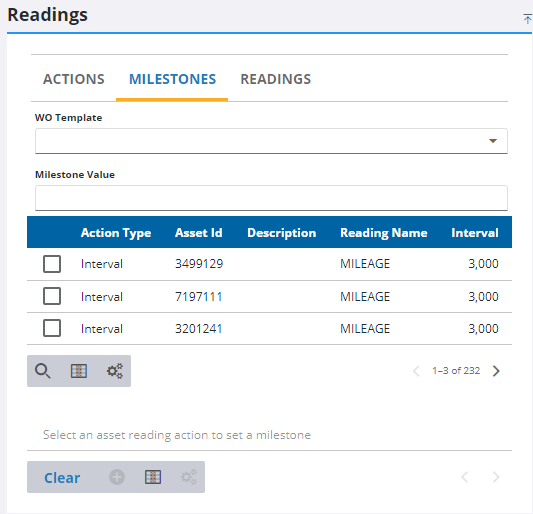
- Click the Milestones tab.
- Select the WO Template to use when the milestone is reached.
- Enter a Milestone Value for the milestone reading.
- Select the Interval reading to associate this milestone with.
- Click Add record.
- To clear the form and enter another reading, click Clear.
NOTE: More than one Milestone may be added for the selected asset, as each milestone is a one-time event. If the Milestone occurs on a multiple of the Interval set for the asset, only the work order for the Milestone is created. For example, if an Interval is set to trigger a work order every 3000 miles for an oil change, and the Milestone is set to trigger a work order at 15,000 miles for a more significant service, only the work order for the Milestone is triggered.