Add Keywords to a Service Request Template
You can add keywords to a service request template to make it easily searchable when creating a service request, or to search for existing service requests.
 TIP: You can filter the list of records displayed. See Filter Records for more information.
- Select a service request template from the Templates panel.
- Click the General tab on the Details panel.
The Keywords section is used to add keywords.
- Click Add record.
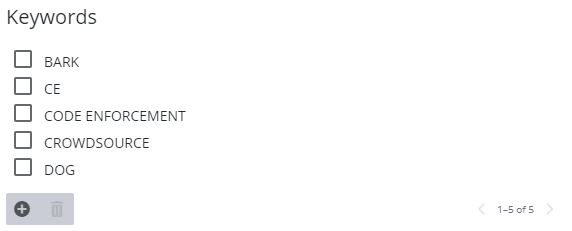
- Enter a keyword for the request template and click Add.
- To remove a keyword, select it and click Delete selected records.
 NOTE: Admin automatically saves the changes you make. A notification pops up at the bottom to verify changes have been saved.