Configure Cyclical Inspections
You can configure inspection templates to automatically create new inspections, depending on the cycle you put in place. An inspection can be set to automatically be created and scheduled according to a set number of days, weeks, months, or even years. The next record in the cycle is created once the Actual Finish Date or Projected Start Date is populated and saved on the inspection.
 TIP: You can filter the list of records displayed. See Filter Records for more information.
- Select a custom inspection template from the Work Activity Templates panel.
- Click the General tab on the Template Details panel.
- Select Once or Every from the Repeat Cycle field if the inspections created from this template are cyclical. Once is for a work activity requiring additional work one time. Every is used for regular, scheduled work that occurs at a certain interval.
 NOTE: If Never is selected for Repeat Cycle, no additional fields display, and cyclical inspections are not generated from any inspections created from this template.
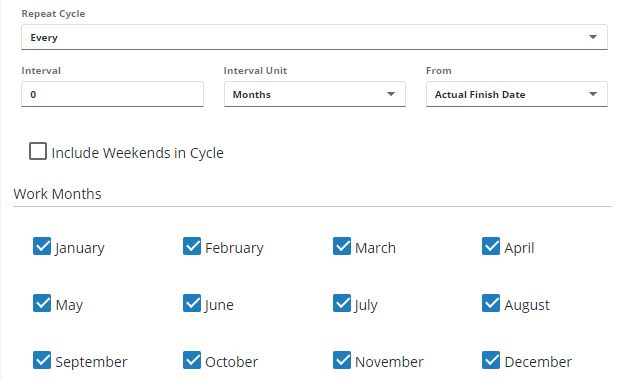
- In the additional fields that display, enter a number and select either Days, Weeks, Months, or Years to set when the next inspection in the cycle occurs.
- Select Actual Finish Date or Projected Start Date to specify the date From which the cyclical inspection is scheduled.
- Select Include Weekends in Cycles to include weekends when calculating the start date. Selecting this means that an inspection can be scheduled to begin on a weekend. Not selecting this means that inspection is scheduled to begin on the next workday following the weekend.
- Select the Work Months during which the work activity is performed. For example, certain inspections might not happen during winter months.
NOTE: Cyclical inspections can be created from an inspection in Office/Field for AMS. The benefit of setting the Repeat Cycle on the template is that cyclical inspections are automatically created and scheduled, according to the cycle defined here, for every inspection of this type once the Actual Finish Date or Projected Start Date is populated on the inspection.
NOTE: Admin automatically saves the changes you make. A notification pops up at the bottom to verify changes have been saved.