Add a Notification Field
|
|
 PREREQUISITES:
- From the home page, click PLL
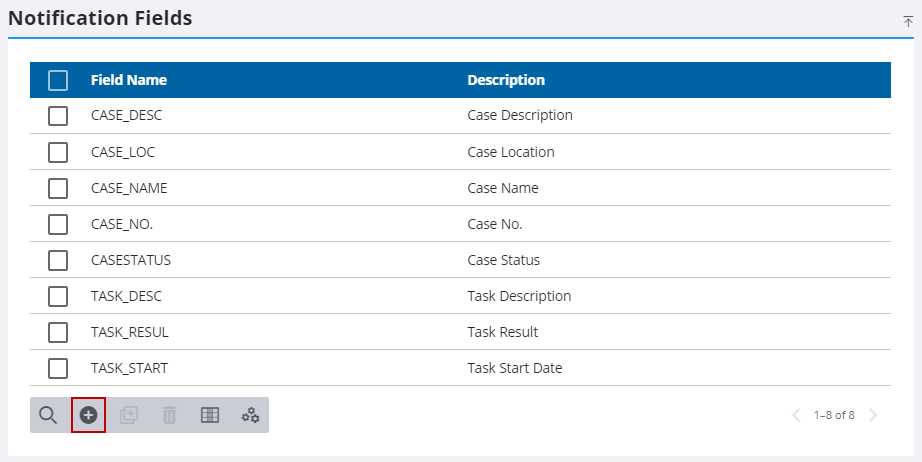
- On the Notification Fields panel, click Add record.
- Enter a 10-character (maximum) code in the Field Name field.
- Enter a brief explanation in the Description field.

- In the SQL Command field, write a SQL script that will retrieve specific information from the database to include in a notification. Click Verify SQL to check the validity of the script.
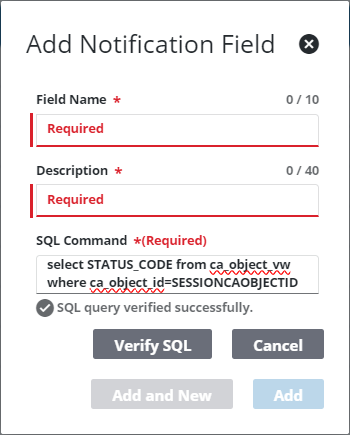
For example, the script shown above pulls from the CA_OBJECT_VW table and the "ca_object_id=SESSIONAOBJECTID" element tells the notification to pull the data from whichever case is open at the time.
 NOTE: SQL commands retrieve data from the database exactly as it is stored there; Cityworks does not support data conversion in this process.
- Click Add to create the notification, or click Add and New to create another notification.

