Search to Query
Search definition saved searches created in Office can be converted to queries using the Search To Query page.
|
|
 PREREQUISITES:
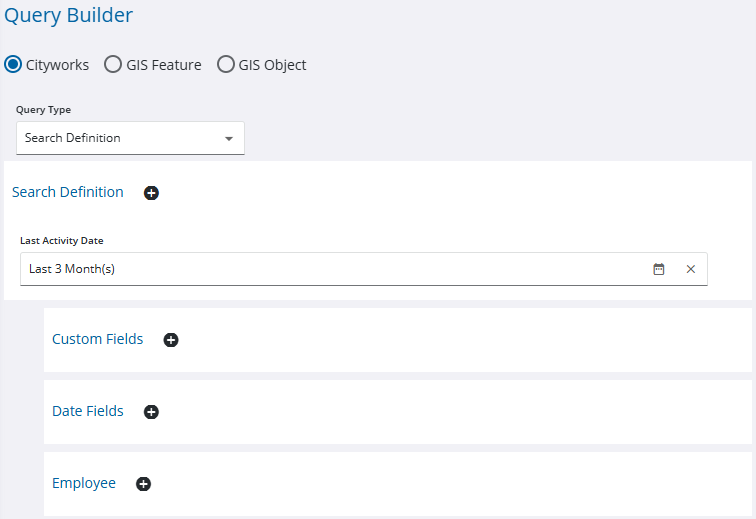
To help identify which search definitions are used and should be converted in Respond, the Search Definition query type and Last Activity Date search field can be used to narrow down which searches have been used in a defined date range. The following image shows a query configured to find search definitions used in the last three months:
- From the home page, click Admin and click Search to Query.
- Select a Search Definition Saved Query from the drop-down list.
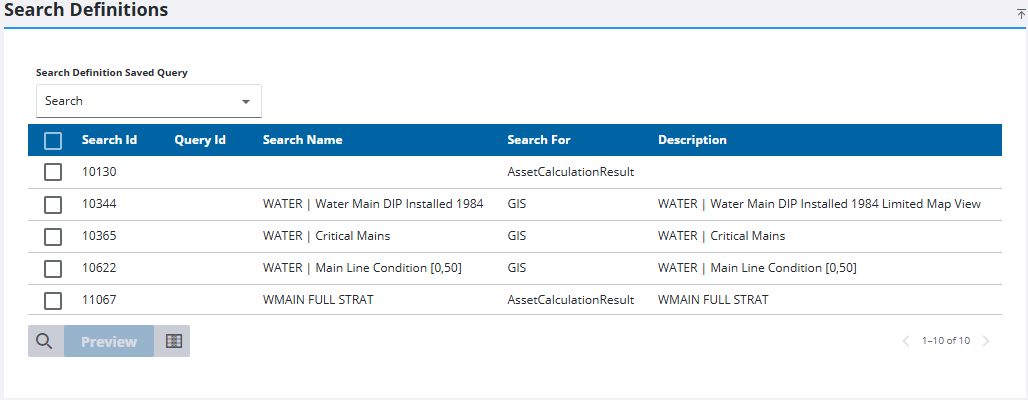
- Select one or more from the list and click Preview to see how they can be converted to a query.
The query syntax appears in the Search To Query Preview Results panel.

- Select it and click Compare to make sure the query based on the search definition is pulling in the same number of items.
- Click Convert if it looks the same.
Optionally, you can click Copy Query to Clipboard to copy the syntax and past it into a new query on the Query Editor page instead. This allows tweaks to be made to the query. See Add a Query for more information.
- On the Convert Saved Search to Queries panel, select the Add Eurl to new Queries check box to keep an event layer if needed.
- Click Convert.

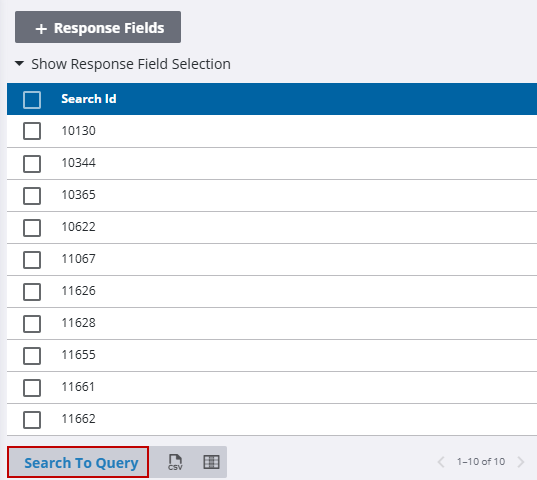
Alternatively, from the Query Editor in Respond, start making a new Search Definition query, select the desired results, and click Search To Query to generate a query based on the selected results.