Create an Unattached Work Order
Unattached work orders are not associated to an asset and can be created while working offline. It is recommended that all unattached work orders are eventually attached to an asset. See Attach an Asset to an Existing Work Order for more information.
 IMPORTANT: Make all desired changes to a new work order before syncing your device, as it does not appear in the app unless the work order meets the filter criteria to appear in your inbox or is included on a saved search that has been added to your mobile inbox. See Filter Criteria and Add Saved Searches to the Mobile Inbox in the Designer for 15.7 Guide for more information.
Complete one of the following to create an unattached work order:
 From the Map
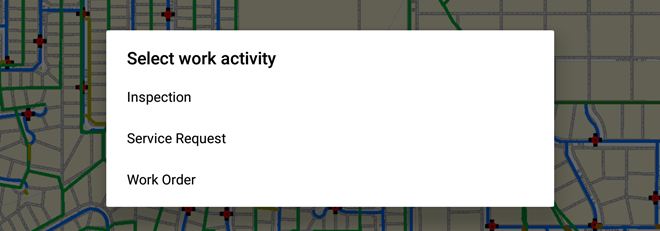
- From the map, tap the add icon in the lower-left corner and tap Work Order on the Select work activity window.
A gray work order map pin is placed in the center of the map.
- Tap the map to change the location of the work order.
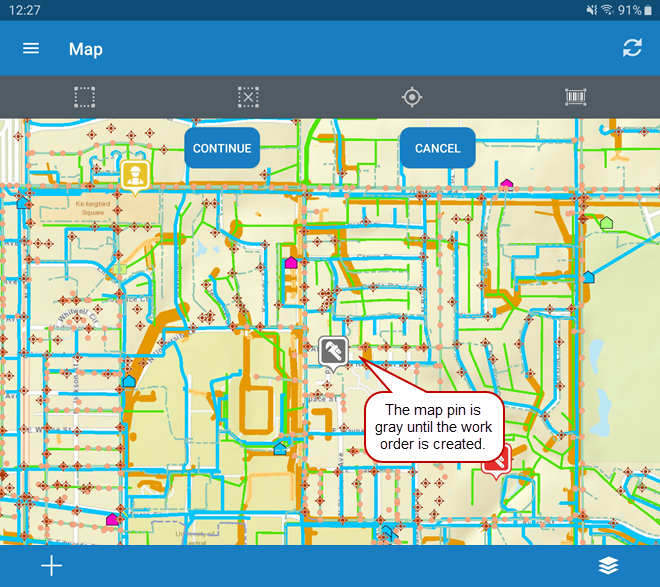
- Tap Continue.
- Select the desired Asset Group, Assets, and Template.
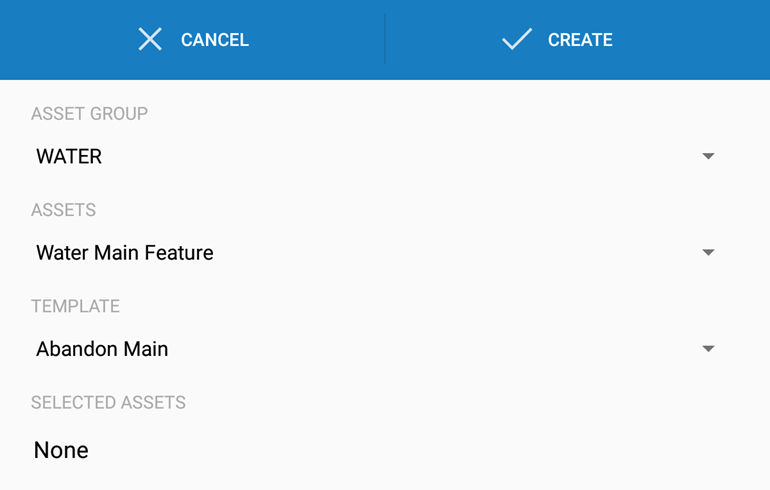
- Tap Create.
 NOTE: The map pin changes to a red color to indicate that the work order has been created. The next time you sync the app, the work order will be synced with the main system.
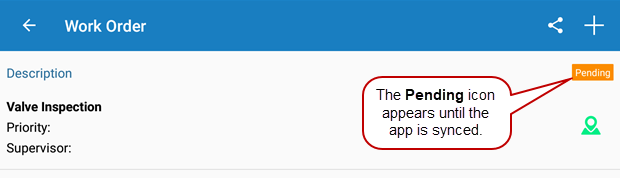
When a work order is created, a Pending icon appears on the work order until you sync the app. The next time you sync the app, the icon will disappear and the work order will be synced with the main system.
From a Work Order
- Open a work order that has no assets attached to it.
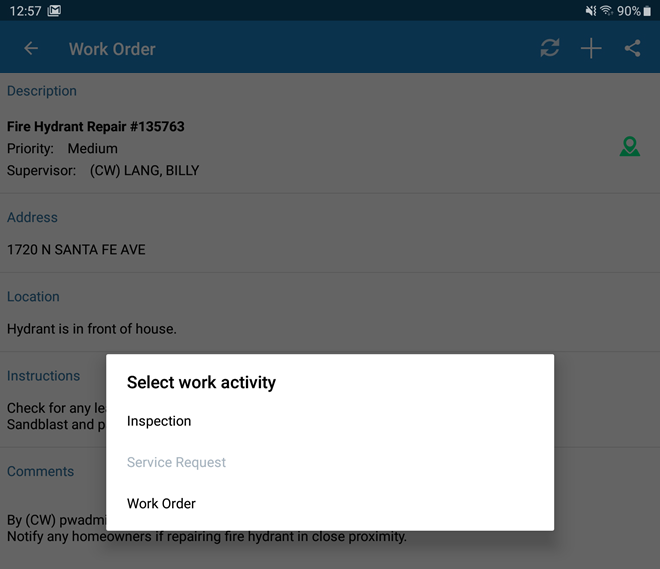
- Tap the add icon in the upper-right corner and tap Work Order on the Select work activity window to create a child work order.
- Select an Asset Group, Assets, and Template.
- Tap Create.
Once the work order is created, it appears at the bottom of the parent work order in the Related Work Activities section.
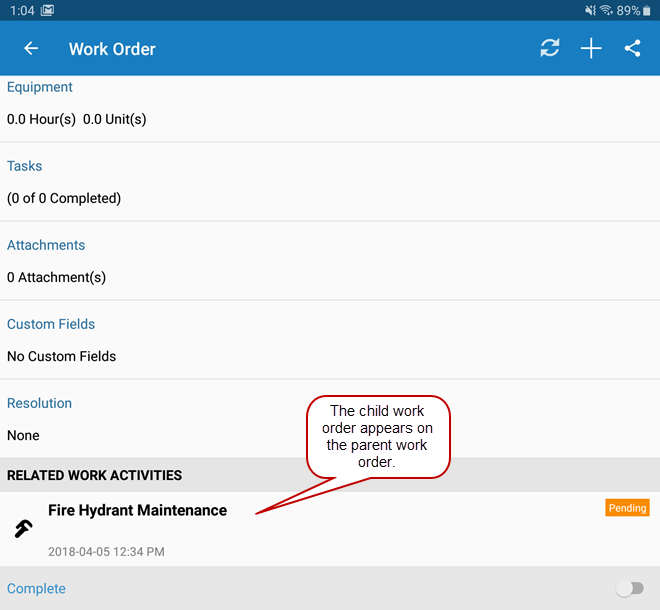
When a work order is created, a Pending icon appears on the work order until you sync the app. The next time you sync the app, the icon will disappear and the work order will be synced with the main system.
- Tap the child work order to view or edit it.
From a Service Request
- Open a service request.
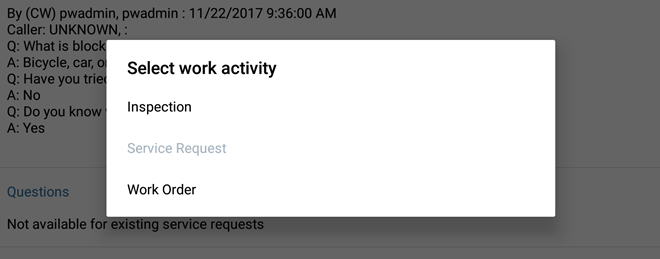
- Tap the add icon in the upper-right corner and tap Work Order on the Select work activity window.
- Select an Asset Group, Assets, and Template.
- Tap Create.
Once the work order is created, it appears at the bottom of the service request in the Related Work Activities section.
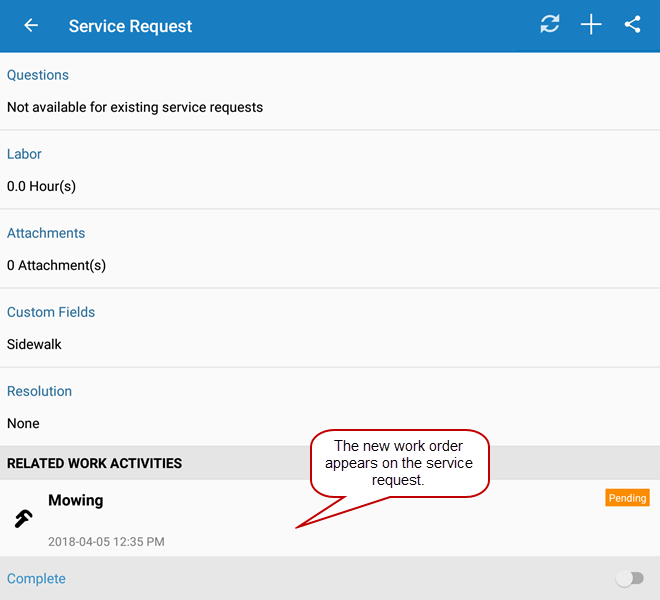
When a work order is created, a Pending icon appears on the work order until you sync the app. The next time you sync the app, the icon will disappear and the work order will be synced with the main system.
- Tap the work order to view or edit it.
From an Inspection
- Open an inspection that has no asset attached to it.
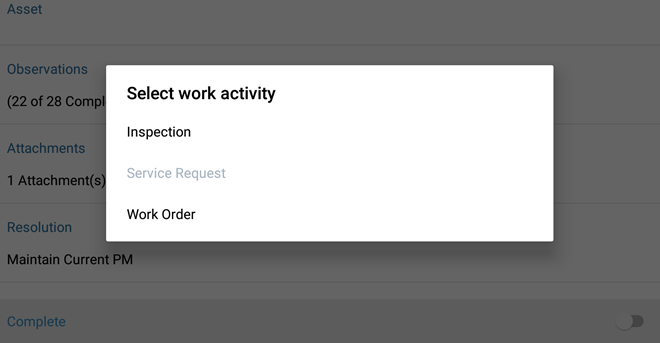
- Tap the add icon in the upper-right corner and tap Work Order on the Select work activity window.
- Select the Asset Group and Assets, and Template.
- Tap Create.
Once the work order is created, it appears at the bottom of the inspection in the Related Work Activities section.
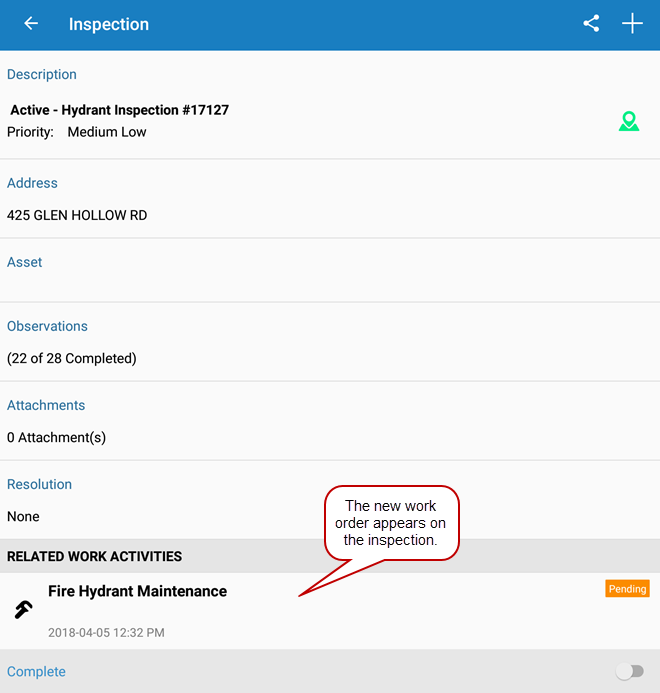
When a work order is created, a Pending icon appears on the work order until you sync the app. The next time you sync the app, the icon will disappear and the work order will be synced with the main system.
- Tap the work order to view or edit it.