Complete Observations
You can complete observations on a linear inspection or a branch inspection in the mobile apps.
 NOTE: While non-calculated observations can be edited from the mobile apps, calculated observations are read only.
 Complete Linear Observations
Linear observations display all observation panels at once, including the observations within and their corresponding answers, to allow the user to quickly fill in the details of the inspection.
- Open a linear inspection.
- Tap Observations to view and edit observations.

If the observations are organized by observation panels, tap a panel to view the observations.
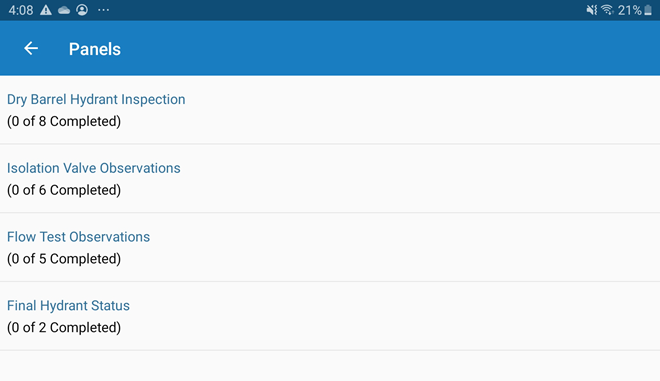
Observation descriptions can provide information on how to answer the observation. See Populate Observations in the Cityworks Respond 4.2 Guide for more information.
- Fill in each item by selecting an option, selecting a check box, or entering text.
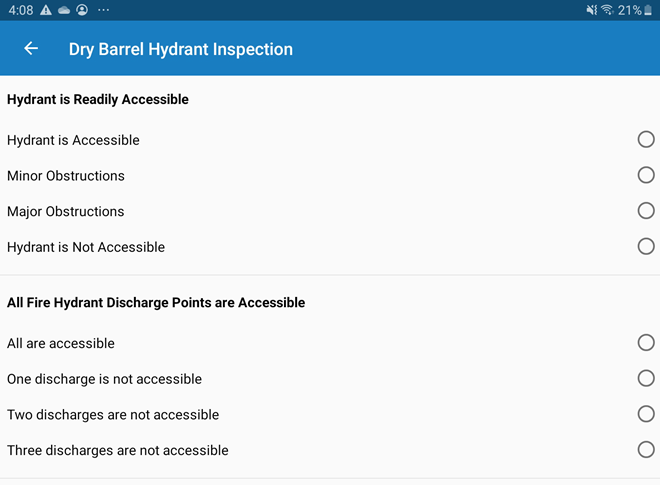
 BEST PRACTICE: To prevent data loss, tap Next Question and sync the app to save your answers before proceeding or closing the app.
If there are instructions or an explanation configured for the answer selected, they appear at the bottom of the observation.
- Tap Show.
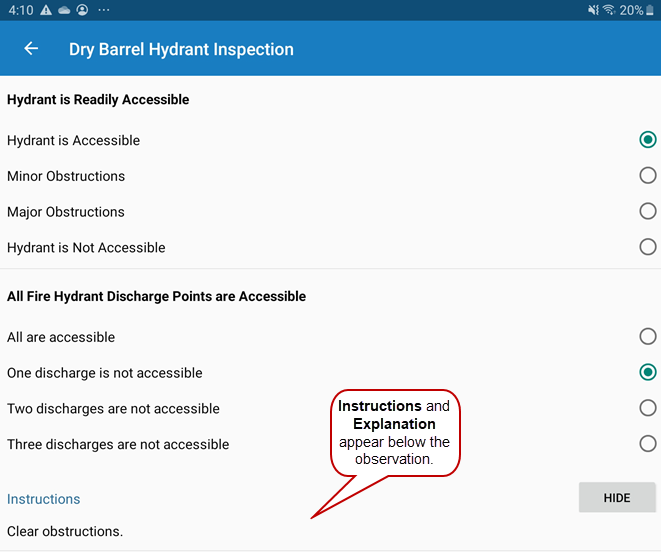
- Tap Hide if you are done viewing the instructions/explanation.
NOTE: The Observations panels differ from one inspection to another, and do not look exactly like the example provided. If the inspection template is configured to display observations in multiple panels, the panels appear on this screen. The panels are collapsed by default, but you can tap them to expand them.
Complete Branch Observations
Branch observations display one at a time. The answer selected determines the next observation, allowing the user to only answer the observations pertinent to the asset.
- Open a branch inspection.
- Tap Observations to view and edit observations.
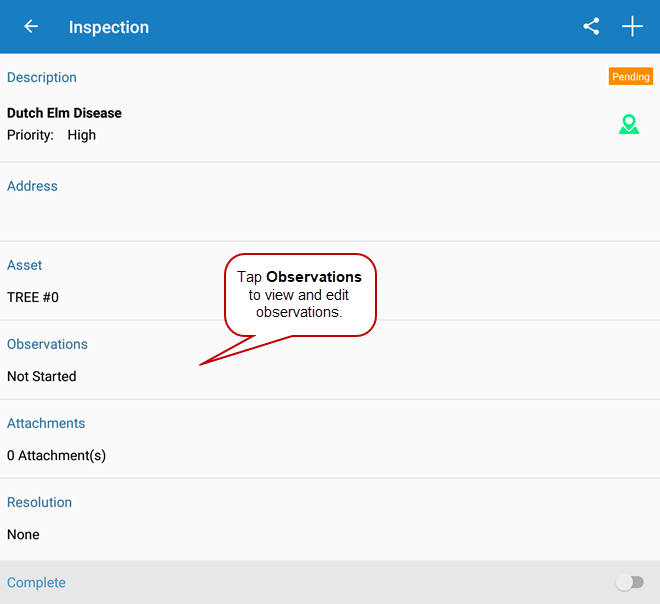
- Select the answer to the question and tap Next Question.
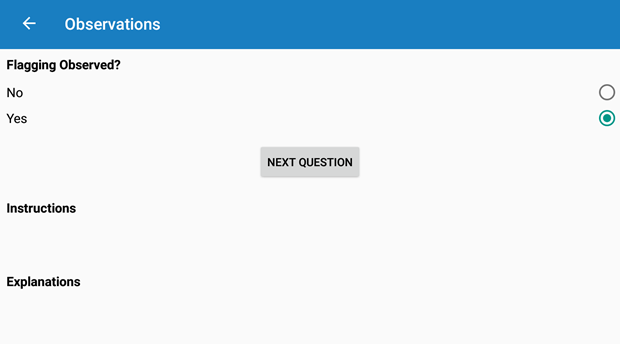
BEST PRACTICE: To prevent data loss, tap Next Question and sync the app to save your answers before proceeding or closing the app.
Depending on the answer selected, Instructions or an Explanation appear if they are configured for the answer.
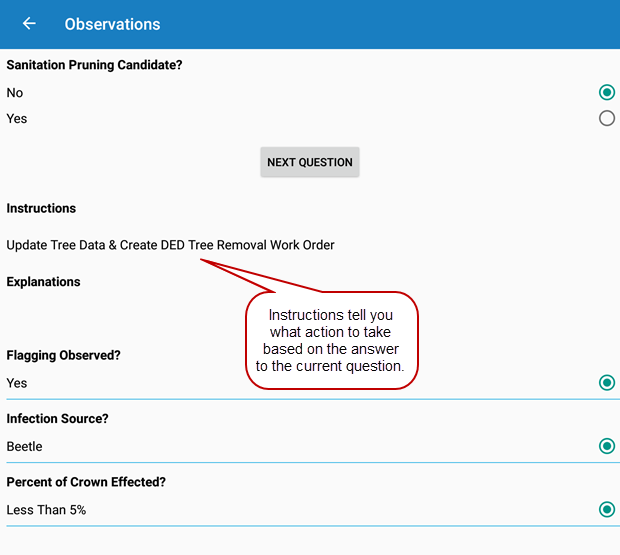
The completed observations appear below the Instructions and Explanation fields.
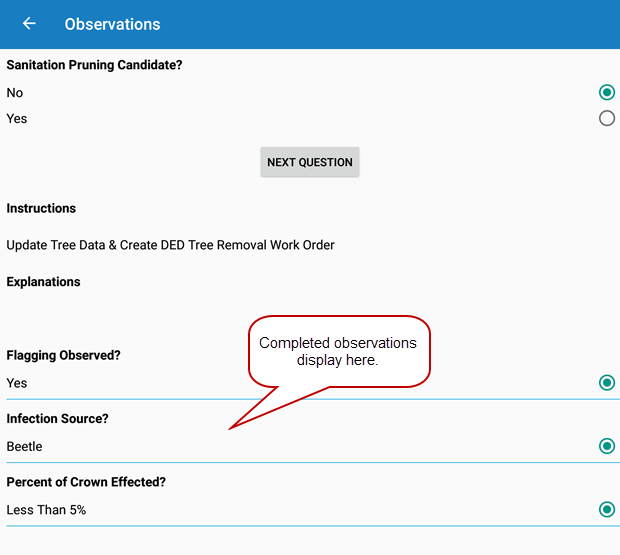
Once the line of questioning is finished, all the observations appear.
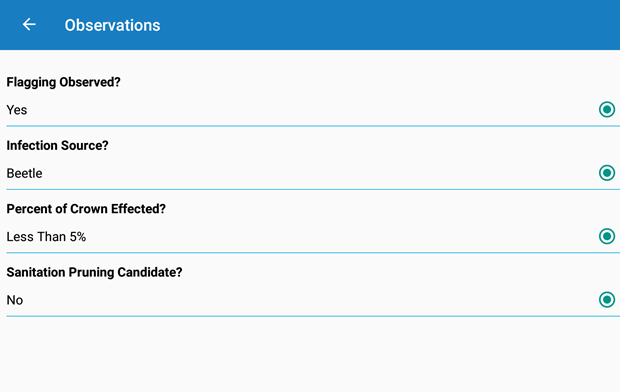
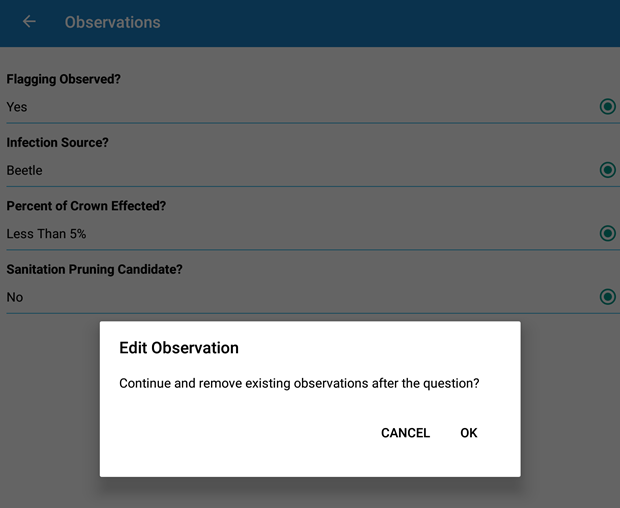
- To edit an observation, tap an observation and tap Yes on the Edit Observation window. Existing observations below the one being edited are removed, and the observations will need to be completed once more.