Add an Attachment
You can add attachments to a task. Any files added to the task in the mobile apps also appear on the task and the Attachments panel on the case's summary page in Office.
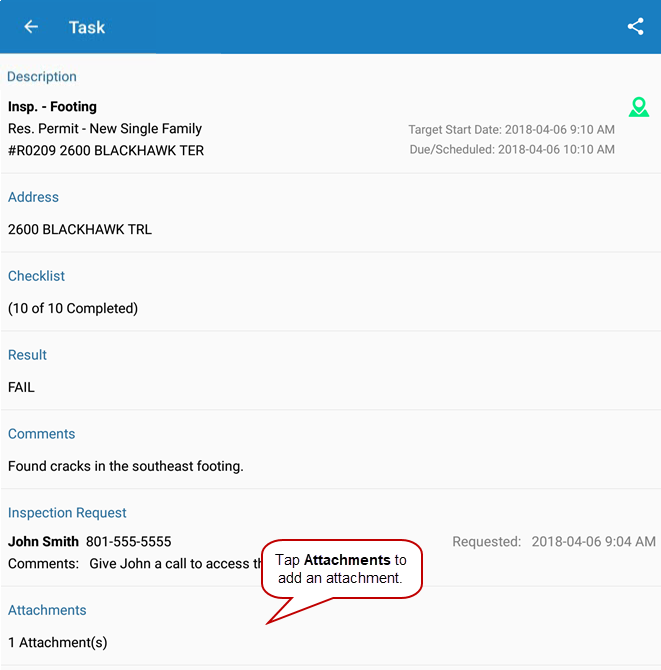
- Open a PLL task.
- Tap Attachments.
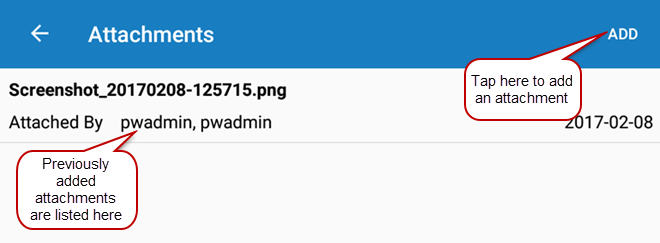
- Tap Add in the upper-right corner.
Existing attachments appear in the list.
- Tap Take Photo to take a picture and add it to the task.
- Tap Record Video to record a video and add it to the task.
- Tap
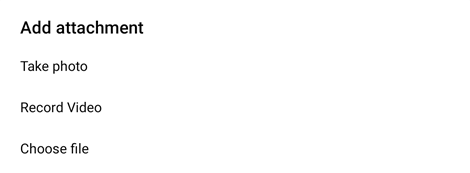
- To attach multiple
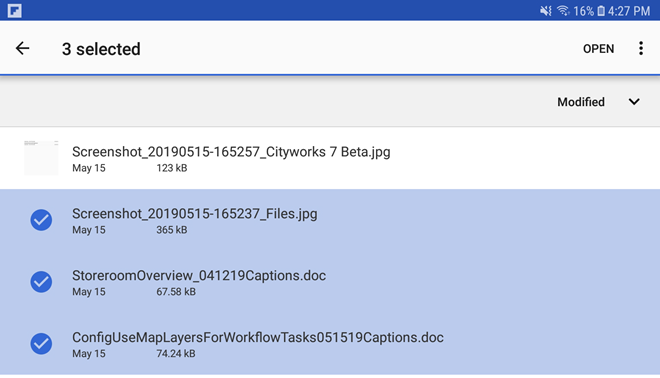
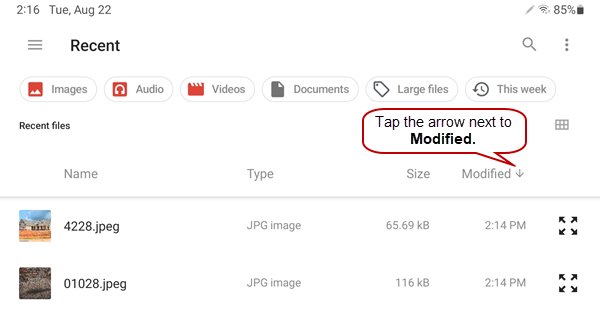
 NOTE: When viewing existing files, tap the arrow next to Modified in the heading to sort the files in ascending or descending order. NOTE: When viewing existing files, tap the arrow next to Modified in the heading to sort the files in ascending or descending order.
|