Install Cityworks Utility
You need your license key to install Cityworks Utility.
- To download Cityworks Utility, log in to MyCityworks and search for the download page of the version of Cityworks you are using.
- After reading the download page, click the Cityworks Utility link found under the Download Files section.
- Open Windows Explorer and navigate to Downloads.
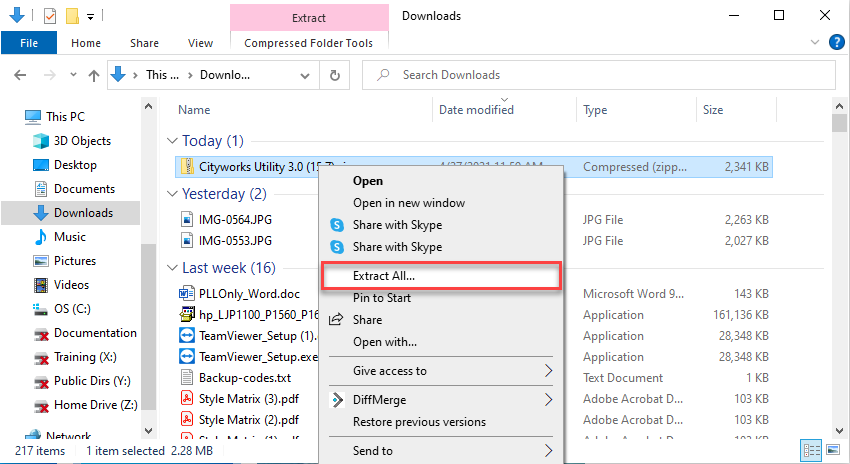
- Right-click the Cityworks Utility zip file and select Extract All to unzip the file.
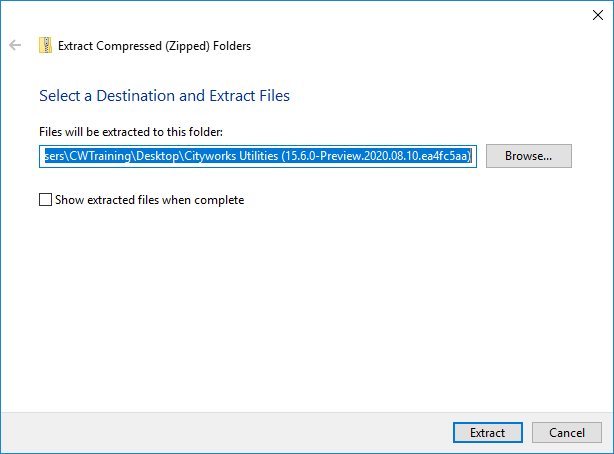
- Select the destination where the extracted files should be placed and click Extract. These files may be installed on any PC within your internal network.
A new File Explorer window opens listing the files.
- Double-click the Cityworks.Utilities.exe.config file or right-click on the file and click Open.
- Scroll to the bottom and find <applicationSettings>. Copy your site URL and replace the URL inside the <value> tags.
- Ensure /Services is at the end of the URL.
- Click Save.

This points Cityworks Utility to your site.
- Close the file, double-click Cityworks.Utilities.exe and click Run.
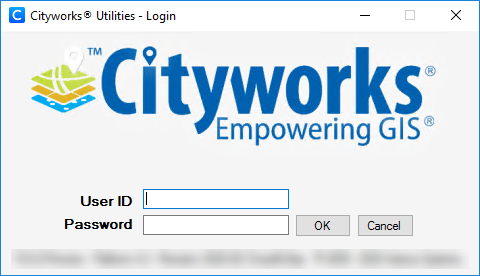
- Enter your User ID and Password and click OK.
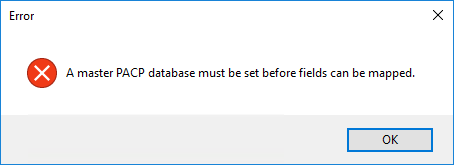
- If the following message opens, click OK. Setting the master PACP database is explained later.
The Cityworks Utility opens.