Equipment Changeout Migration
The Equipment Changeout Migration tool provides a smooth transition when users update from Desktop to Office. The Equipment Changeout Migration tool allows you to migrate the change out data from Desktop database fields to the Cityworks database fields. The Equipment Changeout Migration only needs to run once when upgrading to Cityworks 2013 or newer.
- Select Equipment Changeout Migration.
- Click Next.

There are three main categories under Current saved configurations: AssetType, Field Name, and FieldLabel. The table shows the existing configurations, so if you have run the Equipment Changeout Migration tool in the past, the most recent configurations appear in the table.
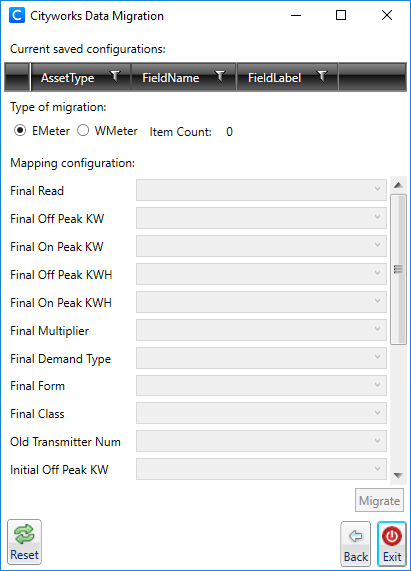
- To begin the Equipment Changeout Migration, select the Type of migration.
 NOTE: Desktop supported EMeter (Electric Meter) and WMeter (Water Meter) change outs. Office supports changes for all entities.
The Item Count shows the number of change out records to migrate. This number change depending on the type of migration.
There are two columns under the Mapping configuration section of the Equipment Changeout Migration tool. The left column of text shows the existing Desktop fields for the type of migration—in the preceding image, these are the existing fields for the EMeter change out; and the right column contains the Office fields. Select where you want to configure a change out from the Desktop field to the corresponding Office field using the drop-down lists.
- After the configurations, click Migrate. The data moves from the old tables in Desktop to the new destination field tables in Office.
- To return to the Cityworks Data Migration window, click Back.
- Click Reset to go to the Data Migration login page.
- To exit Data Migration, click Exit.