Configure Email Notifications for Comments
When users are mentioned in a comment using @username, emails can be sent to let that user know they have been mentioned.
|
PREREQUISITE:
|
- From the General tab, click Email.
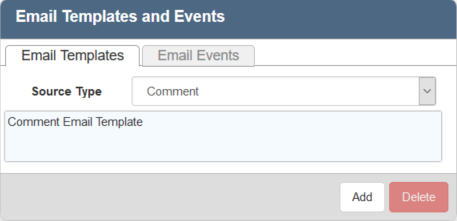
- Click Add on the Email Templates tab.
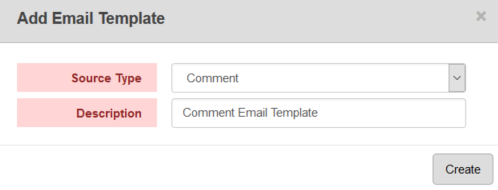
- Select Comment as the Source Type and enter a Description of the email template.
- Click Create.
The template appears in the Email Templates tab.
- Select it and finish creating the template in the Template Details panel.
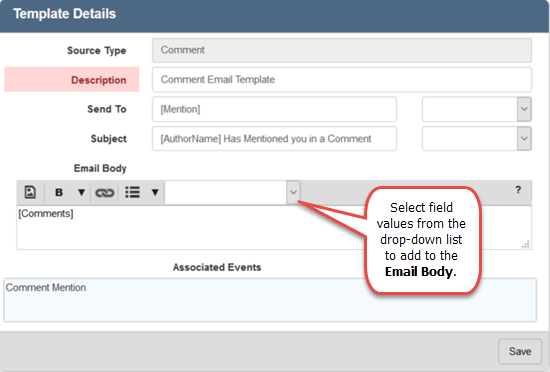
- Select [Mention] from the Send To drop-down list to send an email to the user who is mentioned in the comment.
Alternatively, you can enter an email address in the Send To field, select [LastModifiedBy], or [Author] from the Send To drop-down list to send email notification to others when a user mention is added to a comment.
- Enter the subject line for the email notification. You can select a field value from the Subject drop-down list to be a part of the subject line that pulls information directly from a work activity. For example, "[AuthorName] mentioned you in a comment on [ActivityId]."
- Enter text or select values from the drop-down list to create the body of the email.
Any linked email events appear in the Associated Events box.
- Click Save.
Next, create an email event.
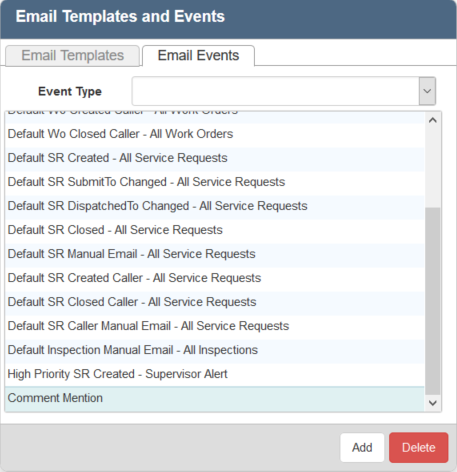
- Click the Email Events tab and click Add.
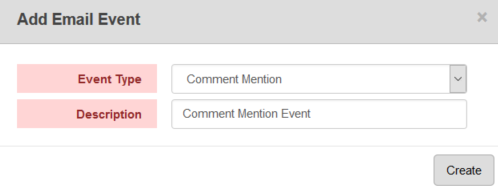
- Select Comment Mention from the Event Type drop-down list and enter a Description.
- Click Create.
The template appears in the Email Templates tab.
- Select it and finish creating the event in the Event Details panel.
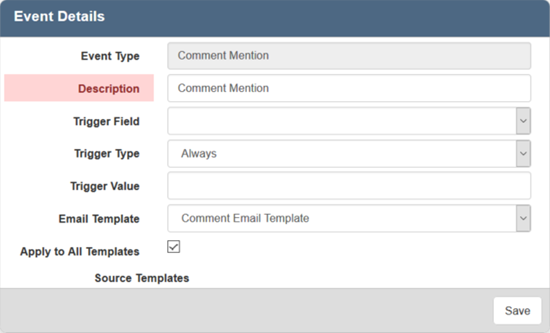
There are two ways to define the triggering event. You can either select Always as the Trigger Type and leave the Trigger Field and Trigger Value empty, or you can populate all three trigger fields to define a more specific trigger.
- To trigger an email to always occur when the selected event happens, select Always as the trigger type. For example, if the event you chose is Comment Mention and the Trigger Type is Always, an email will be triggered whenever a comment mention is added.
- To trigger a specific event, further define the trigger by populating the Trigger Field, Trigger Type, and/or Trigger Value fields. For example select Comments for the Trigger Field, Contains for the Trigger Type, and enter Urgent for the Trigger Value to send an email notification every time the word urgent is written in a comment in conjunction with a comment mention.
- Select the Email Template that will be applied to emails sent for this event from the drop-down.
- Select Apply to All Templates to trigger this notification using all templates, or select specific Source Templates.
- Click Save.
Now that the Email Event has been created and associated with an Email Template, the email will be sent when a user is mentioned in a comment.
See Comments in the Office/Tablet 15.2 for AMS Guide documentation for information on adding a user mention (@username) in a comment.