Add an Employee to a Service Definition
Employees must be added to a service definition, a group of map services, geocode services, geometry services, etc., to be able to perform actions on the map. For example, a user who works with sewer assets must be associated with the correct service definition to select sewer assets on the map to perform a work activity.
- From the GIS tab, click Services, or click GIS Services from the home page.
- Click the Service Definitions tab.
- Select a service definition from the Service Definitions panel.
The Employees panel shows a list of all employees added to the service definition.
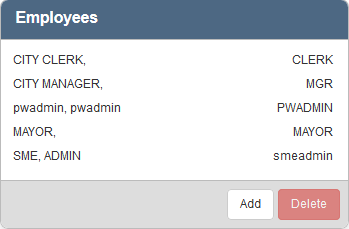
- To assign the service group to an employee, click Add in the Employees panel. In the Add Employee panel you can filter the list by typing the first few letters of the employee in the search box at the top.
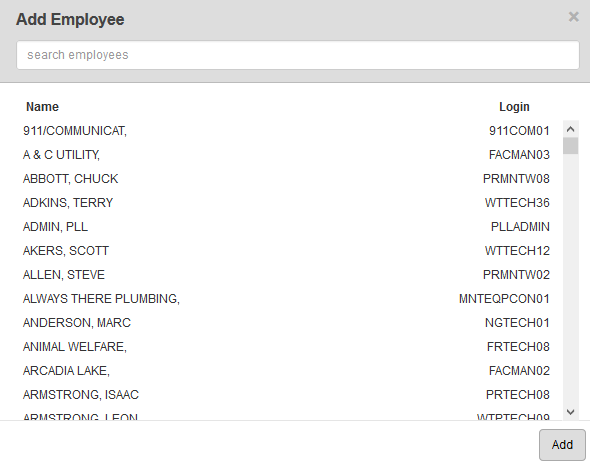
- Select an Employee and click Add. You can use <Shift + click> or <Ctrl + click> to select multiple employees.
Employees can also be added to a service definition if they are associated with either a group or a domain. See Associate Domains, Groups, and Employees to a Service Definition.
 NOTE: Designer automatically saves the changes you make. A notification will appear in the top-right corner of the window that says Data Saved when you make changes to the page.