Add Relationships to Assets
The Relationships section of the Asset Field Configuration panel displays any relevant geodatabase relationships in the Cityworks database for the currently selected asset type. These relationships allow the domain administrator to identify and include the GIS relationships that are applicable to Cityworks users. When the asset is attached to a work order, the related objects are also listed, allowing a work order to be created on the asset and/or any of its related objects.
- Expand an asset group from the Asset Configuration panel and select the desired Asset Type to add Relationships to.
The Asset Field Configuration panel will display on the right.
- Scroll down to the bottom of the Asset Field Configuration panel and click Add Relationships.
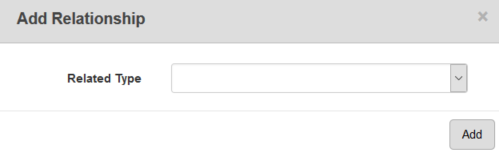
- Select the Related Type and click Add.
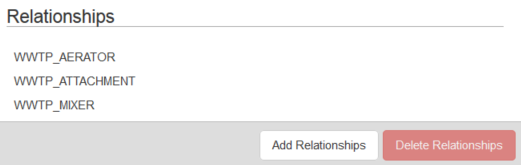
The relationships display in the Relationships section.
 NOTE: Designer automatically saves the changes you make. A notification will appear in the top-right corner of the window that says Data Saved when you make changes to the page.