Add Threshold Actions
Threshold readings should be configured for fluctuating values, such as a temperature or pressure reading, to generate a work order every time a certain threshold is exceeded or if the reading falls below the set value.
- From the GIS tab, click Asset Readings.
- In the Assets panel on the left, select the asset Group and Type.
The Actions tab in the Readings panel is used to set up threshold or interval actions and also displays existing actions.
- In the UIDs panel on the left, select the assets to apply the reading to. Click Select All to select all of the assets listed.
 TIP: Multiple reading actions can be set at the same time if the same information applies to each asset.
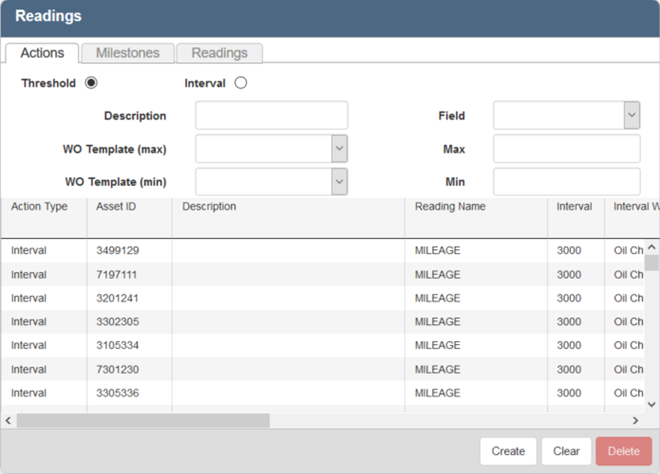
- Select Threshold.
- Enter a Description of the action.
- Select the Field that the reading is based off of.
 NOTE: This field is not updated in the geodatabase when a reading is recorded. The system simply uses this field to verify if the asset has met the specified Threshold or Interval.
- Select the WO Template (max) to use when the maximum threshold reading is reached.
- Enter the number for the Max threshold reading.
- Select the WO Template (min) to use when the minimum threshold reading is reached.
- Enter the number for the Min threshold reading.
- Click Create.
The reading will display at the bottom of the panel.
- To clear the form and enter another reading, click Clear.
NOTE: Designer automatically saves the changes you make. A notification will appear in the top-right corner of the window that says Data Saved when you make changes to the page.