Configure Asset Updates for an Inspection Template
Asset Updates are used to update a field on the assets attached to an inspection when the inspection is closed. This information is pushed back into the GIS to keep an updated record of your asset information.
|
PREREQUISITES:
|
- Select a custom inspection template from the Templates panel.
- Click the Asset Configuration tab on the Details panel.
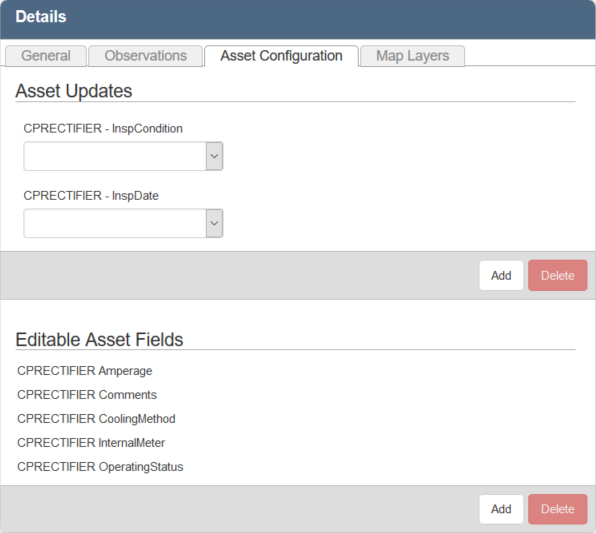
The Asset Updates section shows existing asset updates.
- Click Add to add a new asset update.
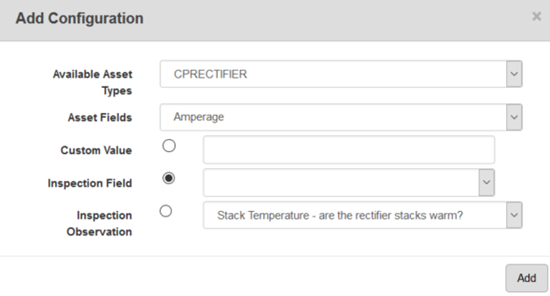
- Select the Available Asset Types. This field is populated based on the Apply to Entities section defined on the General tab.
- Select the Asset Fields that will be updated.
- Select either Custom Value or Inspection Field to specify how the asset field will be updated.
- Select Custom Value to update the field with a custom value. Enter the desired value.
- Select Inspection Field to update the field with a value from a field on the inspection. Select the field.
- Select the Inspection Observation to associate this asset update to.
 NOTE: Inspection Observations can only be mapped to text fields in the GIS. If this field is grayed out, then Asset Fields is not set as a text field.
- Click Add.
- To remove an Asset update, select it and click Delete.
NOTE: Designer automatically saves the changes you make. A notification will appear in the top-right corner of the window that says Data Saved when you make changes to the page.