Configure Equipment Hierarchy
The Equipment Hierarchy panel is used to organize equipment into categories to make equipment easy to find when adding it to a work order on the Equipment page as well as in ELM. A piece of equipment can reside within more than one category.
- From either the home page or General tab, click Equipment.
The existing categories display in the Equipment Hierarchy panel. The categories are arranged alphabetically within the hierarchy.
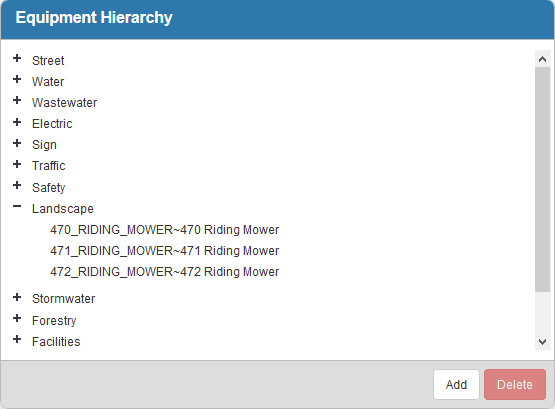
- Click Add to add a new category. Type the name of the category and press Enter or click Add.
- Double-click a category name to edit it.
- Add equipment to the categories. Click the icon next to any piece of equipment in the Equipment panel and drag it to the desired category in the Equipment Hierarchy.
 TIP: You can use <Shift + click> or <Ctrl + click> to select multiple pieces of equipment.
- Once a category has equipment within it, you can click the plus sign next to the category to expand it.
- To remove a piece of equipment from the category, select it and click Delete.
 NOTE: This does not delete the equipment from the system, but removes it from the category.
- To remove a category, select it and click Delete.
NOTE: If you delete a category, it also deletes all the equipment in that category from the hierarchy.
NOTE: Designer automatically saves the changes you make. A notification will appear in the top-right corner of the window that says Data Saved when you make changes to the page.