Migrate GIS Services
If you are upgrading from a version of Cityworks prior to 2015, a Migrate GIS Services wizard will appear the first time the Services page is opened. It migrates the data from the old AGSMAPSERVICE table to the new GISSERVICE tables.
 IMPORTANT: You must migrate your data. If you open the map before migration, you'll get an error message.
- From the GIS tab, click Services, or click GIS Services from the home page.
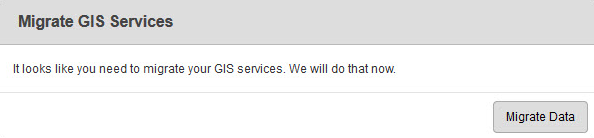
- On the Migrate GIS Services panel, click Migrate Data.
IMPORTANT: The Cityworks database connection credentials set in the WebConnectionStrings.config file must be the Azteca user. Any other user will result in an error message and the migration will fail. If you are using a user other than Azteca, you must open the WebConnectionStrings.config file and change the user to Azteca. Once the migration is successfully complete, you can go back to the WebConnectionStrings.config file and changes the user back to what you were using. The Azteca user is the recommended user for making all connections to the Cityworks database.
- From the GIS tab, click Services, or click GIS Services from the home page. If you had more than one service group before migrating your data, there will probably be some duplicate and generic service resource names under Service Resources (Service 5, Service 6, etc.). These should be renamed to better identify what the service resource is. See Configure GIS Services for more information.
- In addition, the Security Type will be set to No Security for all migrated service resources. You will need to reassess if any secured content is being referenced, then configure security as needed. See Configure Service Resource Security for more information.
- Click the Service Layers tab. During the migration, Cityworks tried to match the services with the assets they resolve to. Review the information in this tab and make any corrections to ensure that all of the information is correct. See Configure Service Layers for more information.