Add Equipment to Material
The Equipment tab of the Material Details panel is used to add equipment to the selected material. If the selected material is added to the estimated costs in a work order, then the associated equipment is added to the estimated equipment costs as well.
|
|
 PREREQUISITES:
- Select a material from the Materials panel and click the Equipment tab.
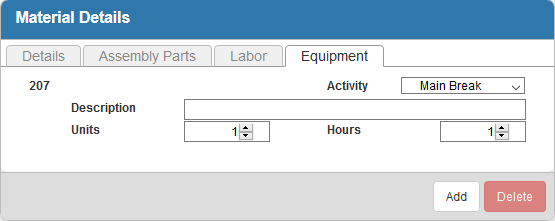
- To add equipment, click Add.
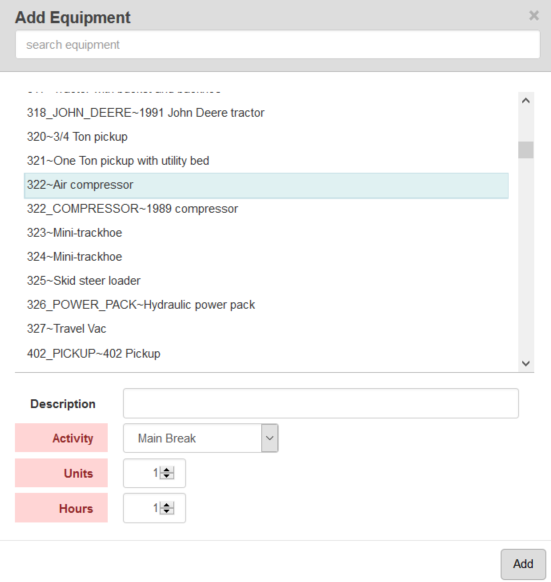
- Select the equipment from the list. You can filter the list by typing the first few letters of the equipment in the search box at the top.
 TIP: You can use <Shift + click> or <Ctrl + click> to select multiple pieces of equipment.
- Enter a Description of the equipment.
- Select a type of Activity. This is populated in Preferences under Custom Codes > AMATACT.
- Enter the Units of equipment needed related to this material.
- Enter the Hours of equipment used related to this material.
 NOTE: The number entered in the Hours field for equipment is multiplied by the number of units entered for the estimated material when added to a work order. For example, if 2 is entered into the Hours field here and 3 is entered in the Units field for the estimated material on a work order, the hours for the equipment are 6. The number of units does not change.
- Click Add.
- To remove a piece of equipment, select it and click Delete.
NOTE: