Configure User-Based Map Settings
In the Map section, users can change map settings specific to their login. For example, users can change the color of selected or highlighted assets, cluster event layers on the map, group event layers together in the Legend
- From either the home page or the General tab,
 TIP: If a user is not licensed for Designer, they can access this page by
The User Preferences panel opens.
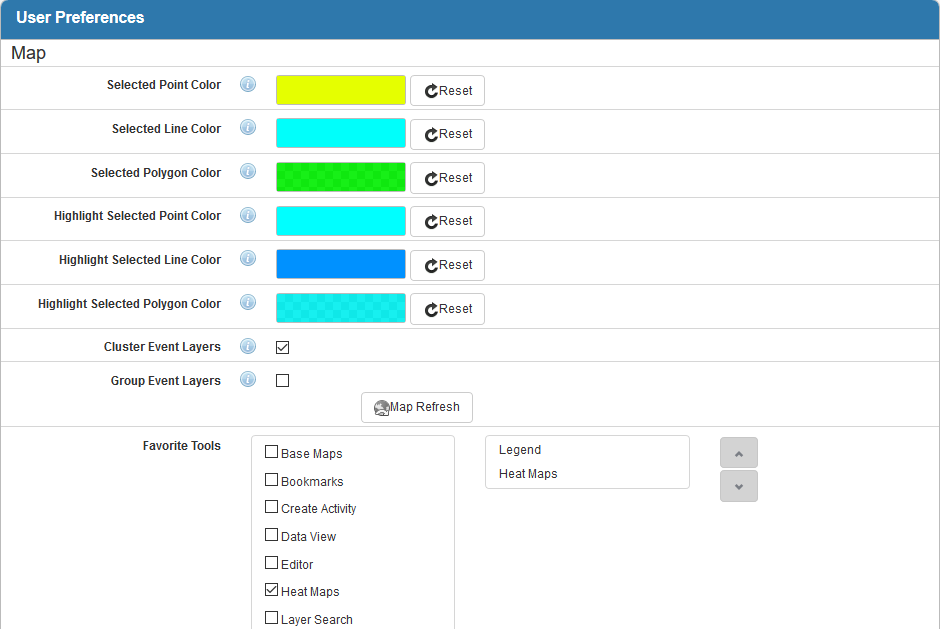
Customize the color that points, lines, and polygons are when selected or highlighted on the map.
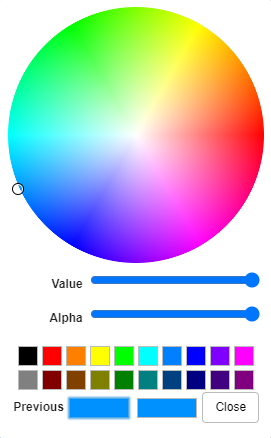
-
- Use the Value and Alpha (opacity) sliders to adjust the color.
- Alternatively, you can select a color from the bottom of the panel.
- Once you have selected the desired color,
- Select Cluster Event Layers to allow event layers to cluster on the map when there are multiple events in close proximity to each other. They are grouped together into one point
- Select Group Event Layers to group active event layers by event type in the Legend map tool.
- Select your Favorite Tools to anchor them to the top of the map. They display in the map toolbar every time you open the map.
 NOTE: The Webmaps and Roads & Highways map tools are only visible in the map when logged in to Cityworks through Single Sign-on. Please see the Single Sign-on 15.8 Guide for more information.
The box on the left shows the tools that may be added to the map toolbar, while the box on the right shows your list of favorite tools.
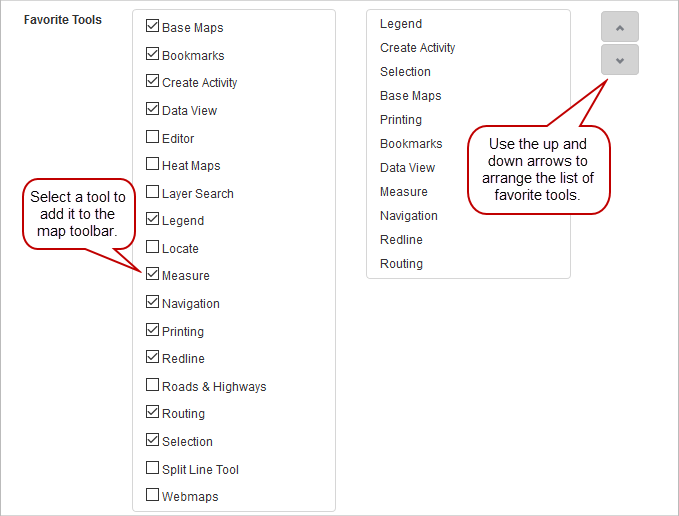
- Select the check box next to a tool to make it appear in the favorites list.
- Arrange the order that the tools appear in on the map toolbar by selecting the tool and
NOTE: