Manage Plugins from the Landing Page
After a site is installed, plugins must be added on the Plugin Manager page first before they can be managed in Admin.
- From the landing page,
- To add a plugin, scroll to the bottom of the page and drag a file and drop it where it says Drag & drop a file here or click the box to browse to the file.
 IMPORTANT: All plugin files must be extracted from the zipped folders before they can be added. Extract the file by right-clicking the zipped file and selecting Extract All.
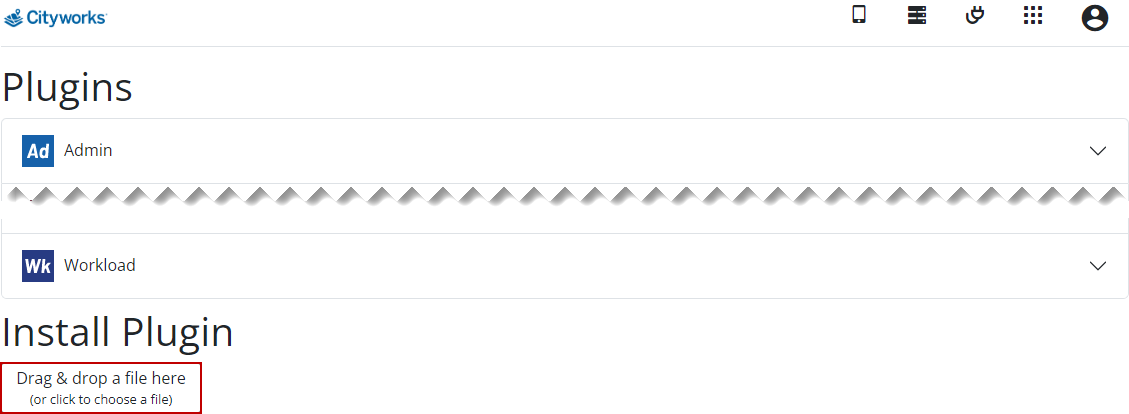
Once the plugin is added, you can add users to it.
-
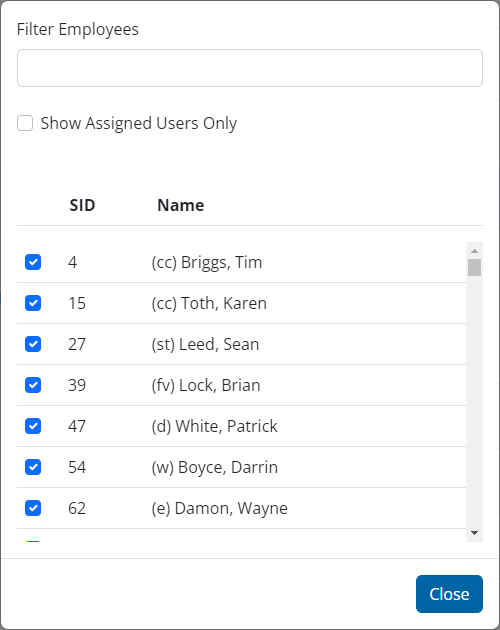
- Select an employee from the list to assign them to the plugin. Use the Filter Employees field to find a specific employee, or use the Show Assigned Users Only check box to only view those users who are already assigned to the app.
-
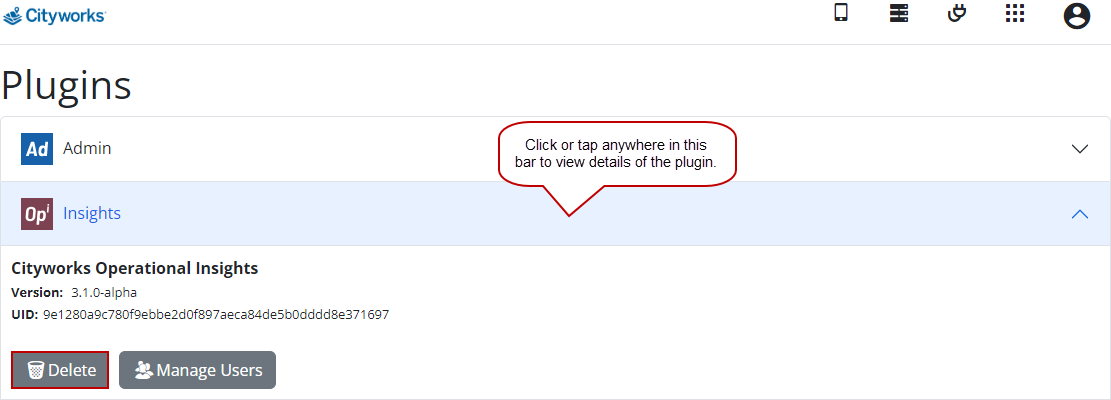
- To remove a plugin,
To open apps, users must be licensed for them. See