Update Cityworks
The Update option of the installer is the preferred method for updating versions of Cityworks. This allows customizations, print templates, application settings, etc., to carry over seamlessly. Make sure all users are out of the application before updating the site. While not required, it is highly recommended that you also run an iisreset from the command prompt as a user that has administrative privileges to the application server to make sure any lingering connections are cleared.
During the update process, the installer backs up the entire install, including the SOE (Cityworks Server Object Extension) and Website folders (Cityworks root folder). The installer places the backup in a folder found at %programdata%\Cityworks_Server_MM-DD-YYYY_HH-MM and also creates a zip file of the backup and places it where you specify in the Backup Location field in the installer.
 BEST PRACTICE: The ...WebSite/WorkManagement/Printing/Media folder can quickly consume space in your site files. Before updating a site, consider reducing the number of .pngs in that folder so the installer will take less time to back up the site files. See How to Manage the Media Folder Images for Work Order and Service Request Map Printing on MyCityworks/Trimble Unity for more information.
During the update process, the installer will restore the following items:
- PrintDocx folder
- PrintCrystal folder
- WorkManagement\Printing\Media folder
- Reports\Crystal folder
- XML folder
- Web.config file
- WebConnectionStrings.config file
- Settings from the WebAppSettings.config file
- cwlicense.txt file
 NOTE: If you must do a manual
|
|
 PREREQUISITES:
- Before proceeding with the update, you will need to modify the WebConnectionStrings.config file to use the Azteca user. Note that if you are using PLL, the database user has to always be the Azteca user, and that user needs to have the Azteca schema set by default.
- Navigate to where the Cityworks installer is located.
- Right-click the installer and select Run as Administrator to launch the installer.
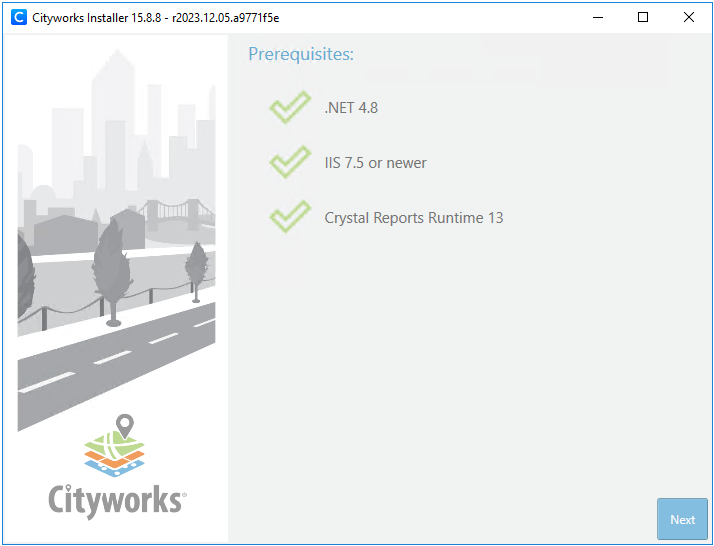
The installer automatically checks to make sure all the prerequisites are installed. If an application is missing, the installer will display a message instructing you to install the needed prerequisites.
If all prerequisites are properly installed, three green check marks appear.
- Click Next.
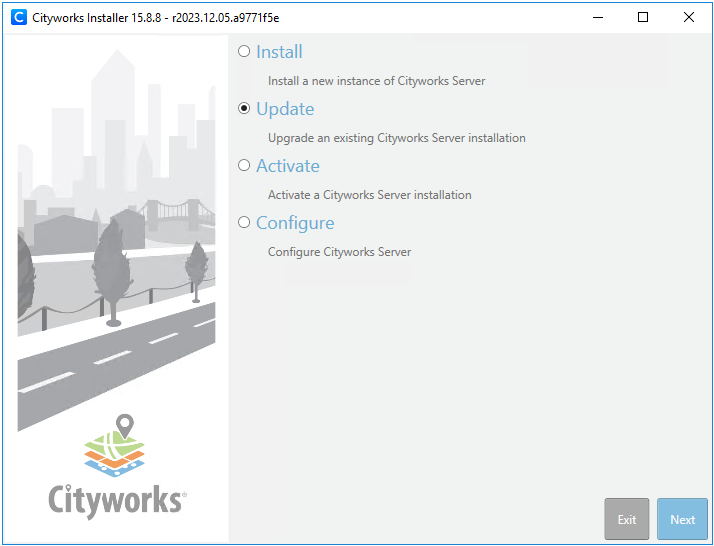
The installer includes the following functions:
- Install: This option is used when first creating a Cityworks site.
- Update: This option is used when updating an existing Cityworks site.
- Activate: This option activates a Cityworks license file. See Activate for more information.
- Configure: This option configures the server, SMTP options, the impersonate user credentials, and timeout settings.
 IMPORTANT: The impersonate user's password cannot contain special characters.
- Select the Update option and click Next.
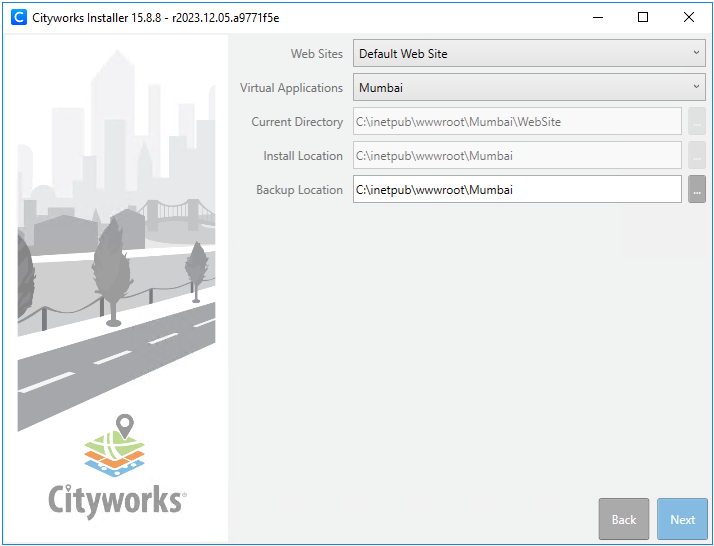
- Select the Web Site and the Virtual Application to be updated.
- Confirm the current site information. If desired, you can change the Backup Location for the existing site.
- Click Next.
IMPORTANT: If you are using ArcGIS Enterprise 10.9, an updated version of the Cityworks SOE can be downloaded from MyCityworks.
- Verify that the site information is correct and click
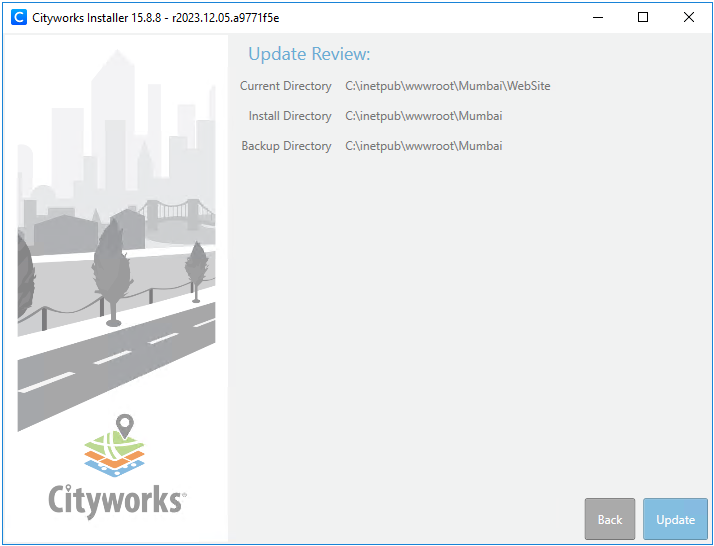
You will be asked if you want to proceed.
- Click Yes.

A box with a status bar displays while the
- IIS is reset
- The existing site is backed up
- The new site is created
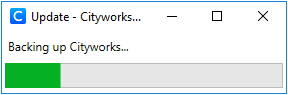
Once the
- Click OK.
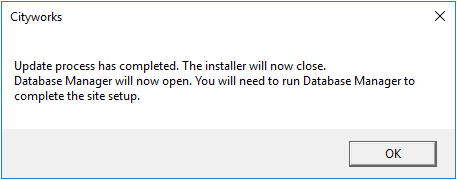
NOTE: At this point, the site folders have been created under the alias and site location specified in the installer. These include the WebSite, SOE, and DatabaseManager folders.
Database Manager opens.
IMPORTANT: If you are upgrading an existing database from 2014 or older, it is very important that you read and follow Knowledge Base article 11674: Upgrade existing Cityworks databases to 2014.
NOTE: If you are using PLL, before running Database Manager, please check the DEFAULT_DURATION_TIME value in the TASK table. If the value is not NULL, 0, or an increment of 15, update this via the Edit:Task panel in PLL Admin.
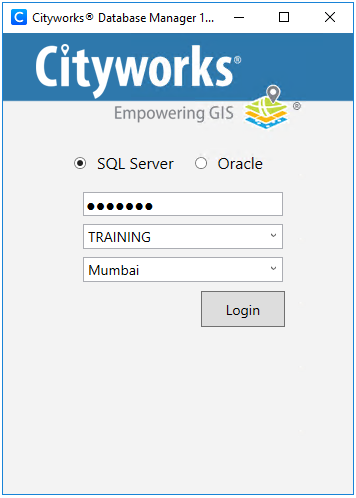
 TIP: If you need to manually open Database Manager, it can be accessed under ...\inetpub\wwwroot\<site_name>\DatabaseManager\Cityworks.DatabaseManager.exe.
- Select either SQL Server or Oracle.
- Enter the Azteca user's password in the first text box.
- Select the server instance and Cityworks database from the drop-down lists.
- Click Login.
The Database Manager screen shows the progress while it checks the CWVERSION and migration history tables. Click Log to open or close the log. When the log is open, there are three options: Clear the contents of the log, Copy the log’s contents to clipboard, or Save the log’s contents.
Click the arrow next to Advanced Options for the following options:
- Verify Database: This option verifies the structure of the Cityworks database and identifies any errors. The errors are displayed in the log, followed by a list of SQL scripts that can be run to correct the errors.
- Check Database Version: This option checks the Cityworks database version.
- Configure CWDBAs: This option allows for the configuration of Cityworks Database Administrator (CWDBA) users. A CWDBA is created during the installation of the Cityworks database. These users will have access to the Admins and Domains options in Designer via the home page or General tab.
- Generate SQL: This option generates SQL syntax for the update. The syntax could be copied and ran directly against the Cityworks database outside of Database Manager.
- Disconnect: This option disconnects from the Cityworks database.
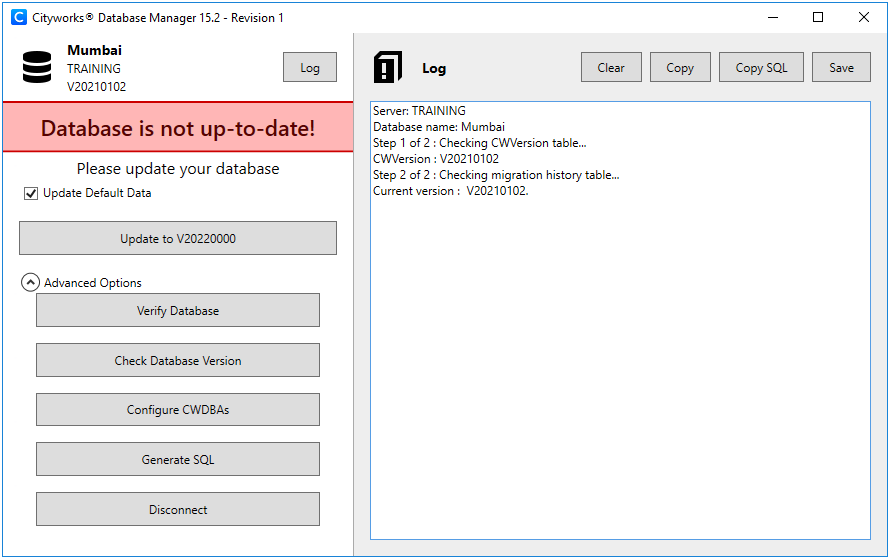
IMPORTANT: The red Database is not up-to-date message might not appear under certain circumstances, such as when upgrading from one service pack to another of the same version (for example, 15.8 to 15.8.1). Even if it does not appear, you still need to complete the following steps to update the database.
- The Update Default Data check box is selected by default. If left selected, Database Manager will check the default data in each of the tables listed below and update the data if it does not match the default values. Check the default behavior for these tables. If you have modified any of the default data in these tables and feel like those changes could be altered based on this information, you should clear the Update Default Data check box before proceeding. Ask our support department for more information.
- Data in these tables will always insert new or missing, and update existing records:
- azteca.CODEDESCFIELD
- azteca.DESCSCOREFIELD
- azteca.DEPOSIT_TYPE
- azteca.DISTRESSCODE
- azteca.EMPRELTABLEFIELD
- azteca.FEATURE_CONSOLE
- azteca.FEE_TYPE
- azteca.FLAG_SEVERITY
- azteca.FUNCTIONS_LEVELS
- azteca.INSPECTIONTYPE
- azteca.REPORTCATEGORY
- azteca.SOURCETABLEFIELD
- azteca.SYSTEM_STATUS
- azteca.SYSTEM_TABLES
- azteca.TASK_TYPE
- Specific codes involved with our Paver integration will also be updated like this.
- Data in these tables will only insert new or missing records:
- azteca.AUDIT_TRACE
- azteca.FUNCTIONS
- azteca.PWCODE
- azteca.PWCODETYPE
- azteca.QUERYFIELDCONFIGURATION
- azteca.SYSTEM_TABLE_COLUMNS
- Data in these tables is only insert if the table is empty:
- azteca.CCTVCODES
- azteca.PWCONDSCORE
- azteca.PWUNIT
- azteca.TABLEFIELDMAP
- Turn off any database triggers before running Database Manager.
IMPORTANT: Database triggers must be turned off before updating the database to 15.5 otherwise issues may occur. Once the update is complete, the triggers may be turned on again.
- Click Update to V2022XXXX or Update Database (the button name will vary depending on which version you are upgrading from and to). You must do this step, regardless of which version of Cityworks you are upgrading from and to.
NOTE: When new tables are added to the database, they are not added to the PWSYSID table until they are populated through the Cityworks UI. This means that data imported to other tables is not added to the PWSYSID table until something else is added to that table via the UI.
Once the six steps have been successfully completed, users will receive a message indicating that the database was successfully updated. If not, the log will show where any issues were encountered.
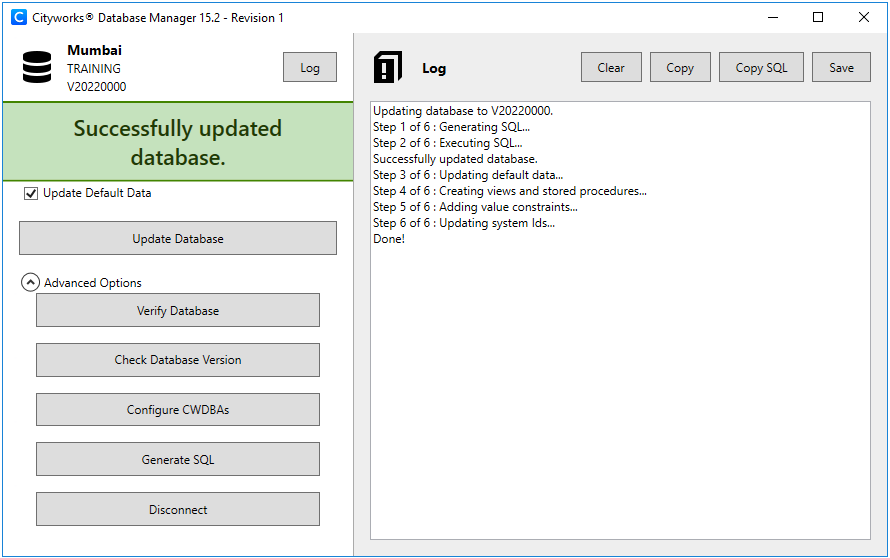
- Click Verify Database, found under Advanced Options, to identify any additional schema changes that need to be made. If there are any errors in the log after verifying the database, you can fix them by running the SQL scripts provided at the bottom of the log.
- If desired, make sure to
IMPORTANT: After the site has been updated, the installer sets Modify rights to the impersonate user, NETWORK SERVICE user, and Users group to the PrintDocx, PrintCrystal, Uploads, WorkManagement\Printing\Media, and Reports folders.
The Default Web Site or the default directory from which Cityworks is published will be added to its own application pool, the CityworksAppPool, which is managed by the
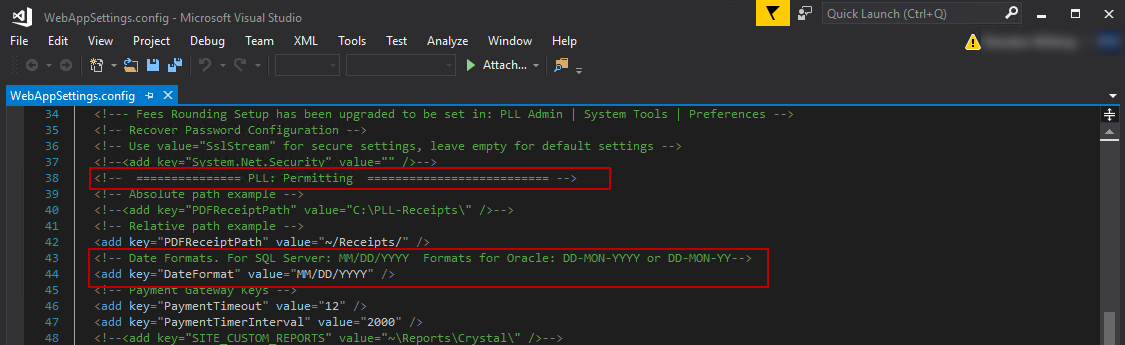
- If you are using PLL and have an Oracle database, open the WebAppSettings.config file (found under ...\inetpub\wwwroot\<site_name>\WebSite) and navigate to the Permitting section. Make sure the DateFormat value is an Oracle date format (either DD-MON-YYYY or DD-MON-YY).
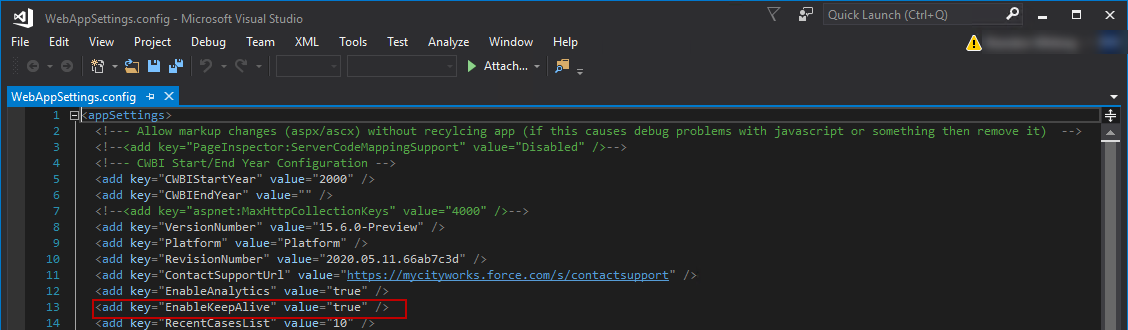
In 15.6, an EnableKeepAlive setting was added to the WebAppSettings.config file. When it is set to true, Office will keep the user's session active, even if the user has not used Office in a while. Some JavaScript is added to the code in Office that tries to keep the session active one minute before the session is set to time out based on the Session Timeout or Forms Timeout settings, depending on whichever one is less, configured in the installer. It is set to true by default.
- Open the WebAppSettings.config file (found under ...\inetpub\wwwroot\<site_name>\WebSite) and change the EnableKeepAlive setting to false to disconnect the user's active session based on the Session Timeout or Forms Timeout settings in the installer.
In 15.5, the AllFields document was updated with new codes.
- If you are using print templates, update them to use the new codes.