EmployeeSid Migration
The EmployeeSid Migration tool finds duplicate employee names in the employee tables and allows you to merge them if they are the same person, or to create a Unique Name if they are two different people. This allows you to remove duplicate employees while keeping all historical data associated with the duplicate employee you wish to remove. The EmployeeSid Migration only needs to run once when upgrading to Cityworks 15.1 or newer.
 IMPORTANT: Only migrations relevant to upgrading to 15.1 and newer are included in this update guide. If you are upgrading from a version older than Cityworks 15.1, there may be other migrations that need to be performed. See the
IMPORTANT: It is recommended that you resolve any duplicate employees before starting the migration.
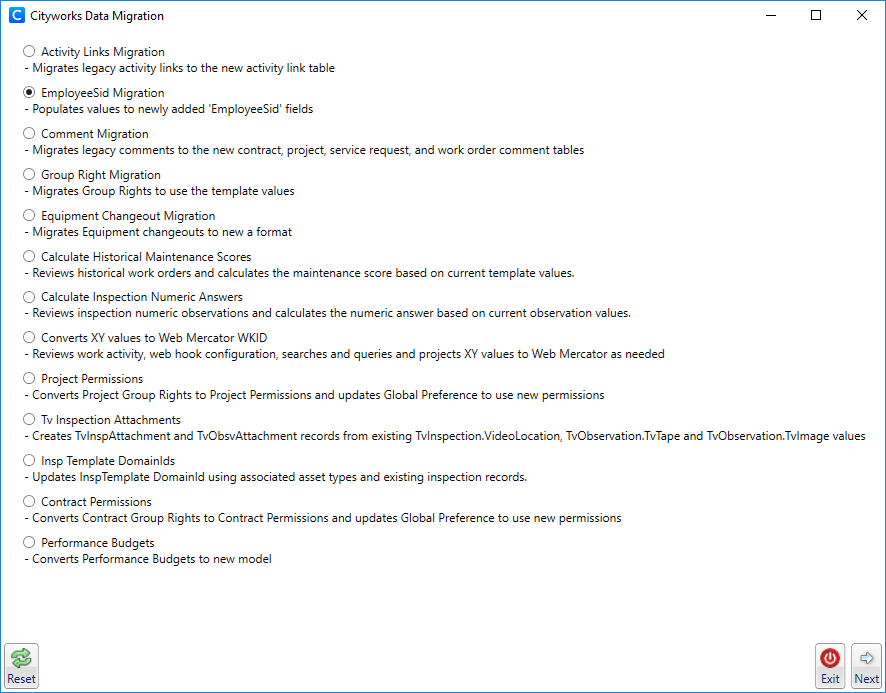
- Open the Data Migration tool.
 NOTE: To download the Data Migration tool, log in to MyCityworks and search for the download page for the version of Cityworks that you are using. See the
- Select EmployeeSid Migration.
- Click Next.
A list of duplicate employees from your database appears in the migration tool.
NOTE: If there are no duplicate employees, the table appears empty and you may start the migration.
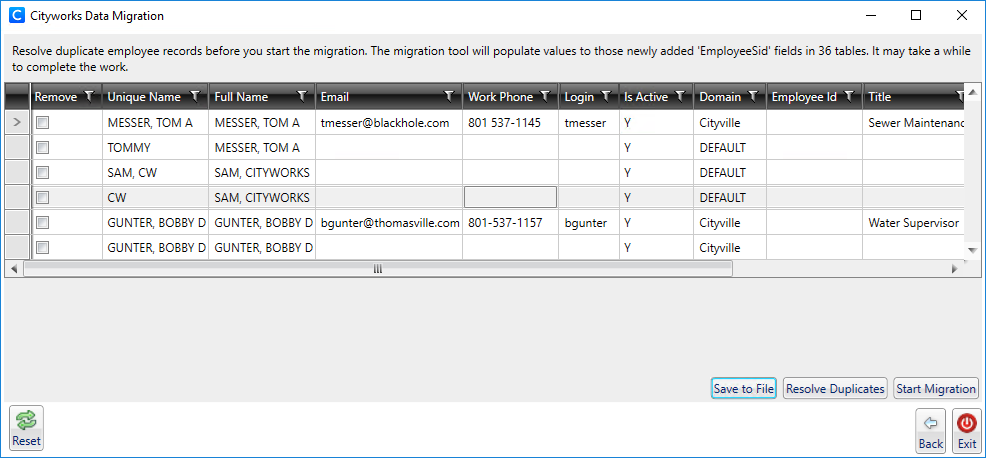
The Data Migration tool automatically populates all duplicate employees with unique IDs in the Unique Name column. If there are two different employees with the same name, the Unique Name serves as the identifying name.
- To change the Unique Name assigned, double-click in the field to edit it. Enter a name as close as possible to the original name. Do not use the Unique Name as a place to put nicknames or preferred names.
From here you may remove the actual duplicate employees. If you wish to review the list of employees to determine the ones you don't need, click Save to File to download the list.
- To remove a duplicate employee, select the check box next to the duplicate you wish to remove in the Remove column and click Resolve Duplicates.
- Click OK on the Resolve Duplicate Employee Records panel.
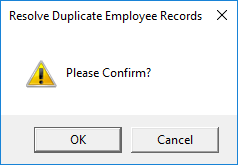
This merges the two duplicates together into one employee record, retaining all historical data. Both records disappear from the list.
- Once all unique names are entered and/or all duplicates are resolved, click Start Migration.
If any duplicate employees are left in the list, the Duplicate Employee Records Found panel opens.
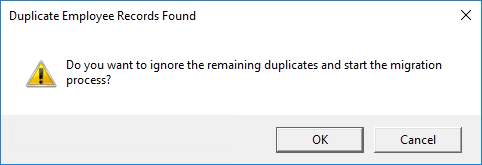
- Click OK if you wish to proceed.
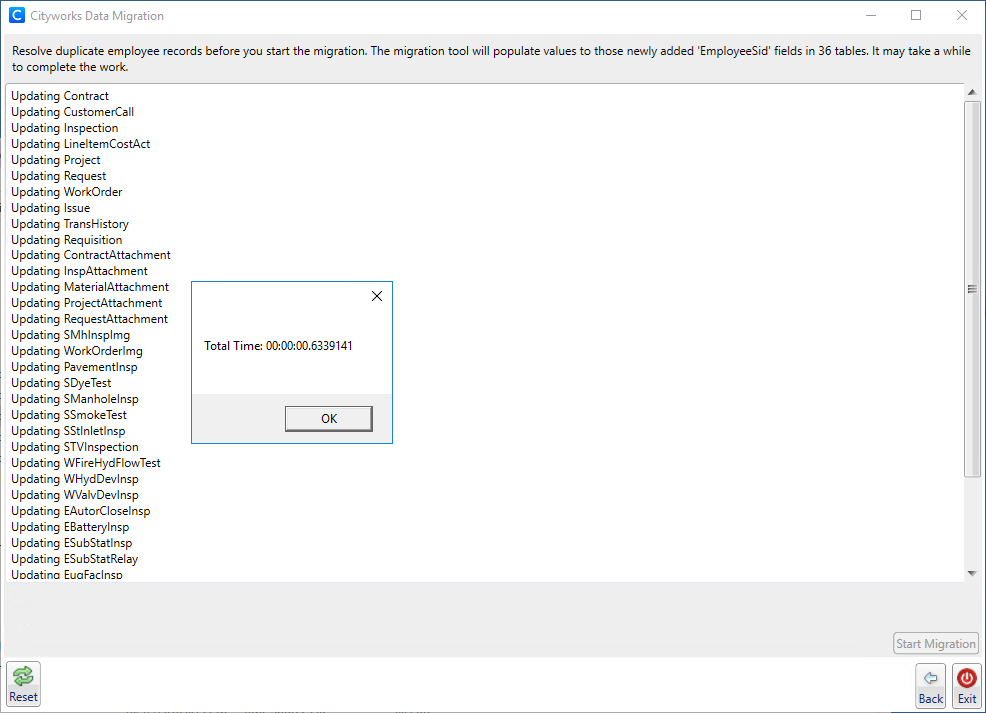
Once the migration finishes updating the tables, click OK.
IMPORTANT: If you have saved searches that reference employees, you also need to run the validation in Designer to migrate saved searches. See
- To return to the Cityworks Data Migration window, click Back.
- Click Reset to go to the Data Migration login page.
- To exit Data Migration, click Exit.