Add Assets to Selection Based on Attributes
If you already have assets selected, you can add more assets to that selection based on specific asset attributes.
- Select the desired assets on the map.
-
- Select Add to Selection from the I want to drop-down list.
- Select a layer from the Options drop-down list. Only layers that have assets currently selected on the map are shown in this list.
- Select a field to query from the Field drop-down list.
- Enter a search term or select options from the Find field. If the selected Field has been configured with search options, the Find field changes to a drop-down list.
 TIP: You can enter null or not null in the search field to search for records with those field values.
- Select In List (comma delimited) to perform an exact or equal search. You can enter multiple values in the Find field separated by commas.
- Select Like Search (rather than exactly equals) if a like or similar search is desired.
- If you want to limit the search to a specific area, use one of the following options:
- To limit the search by the current map extent, select Current View Extent.
- If you have assets selected on the map and want to limit the search by the extent of those assets, select Extent of Selected Features.
- To limit the extent by a specific area,
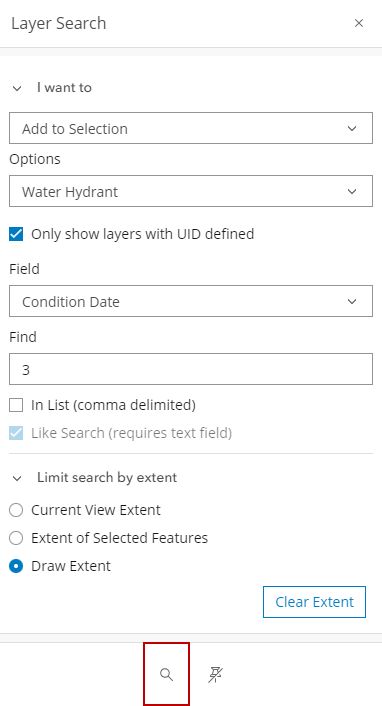
Any assets that match the search criteria are added to the selection.