Edit Project Details
Project details can be edited or updated from the Details panel.
 TIP: See Edit a Project for a quick start guide on this subject.
- Open the desired project. After creating a project, the
- Make the edits on the Details panel.
- Click Save in the upper-right corner.
The Last Modified date updates automatically when you Save your changes. See Details Panel Fields for more information.
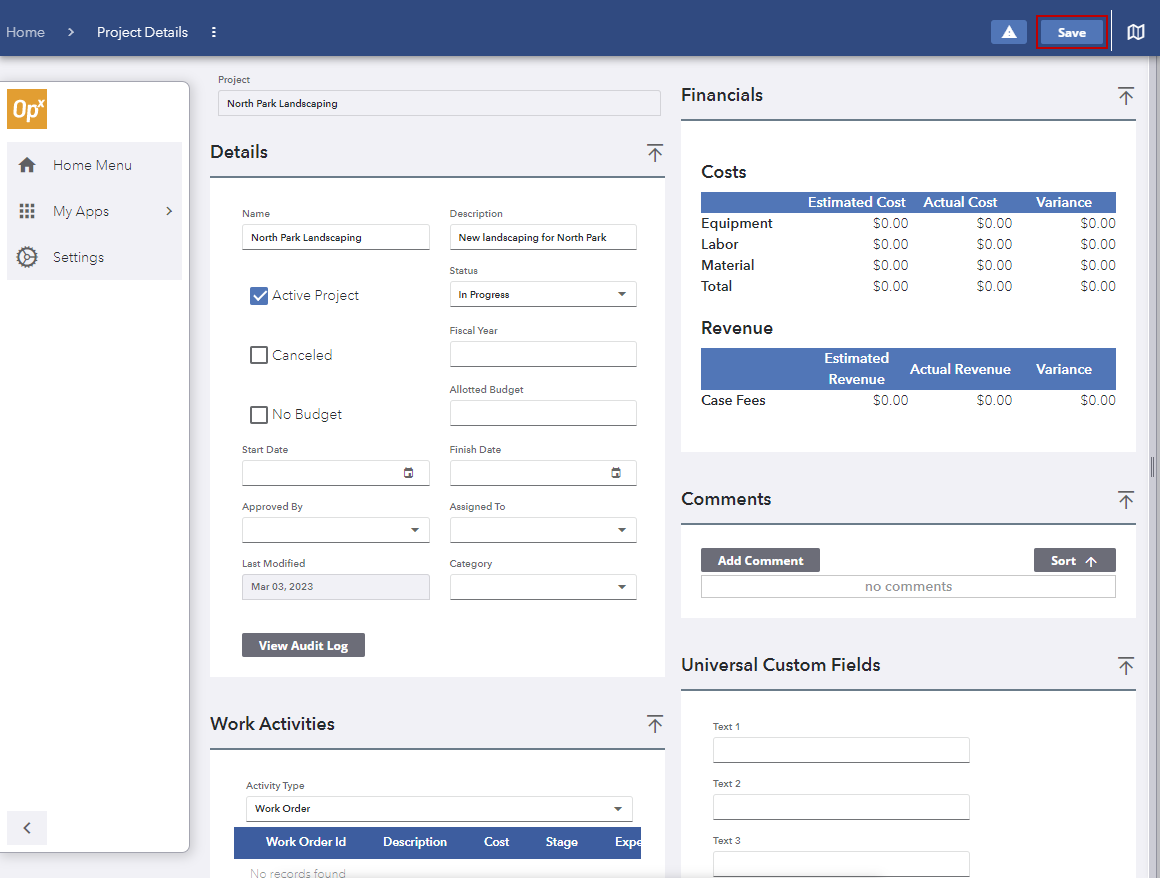
 IMPORTANT: Make sure you click Save in the upper-right corner of the page to save any changes. Before any changes have been made, Save appears grayed out.
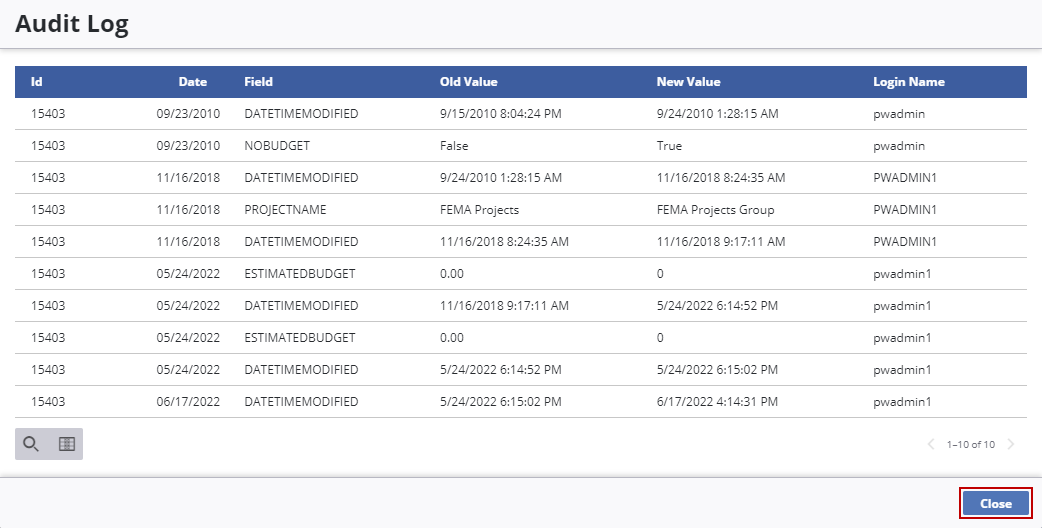
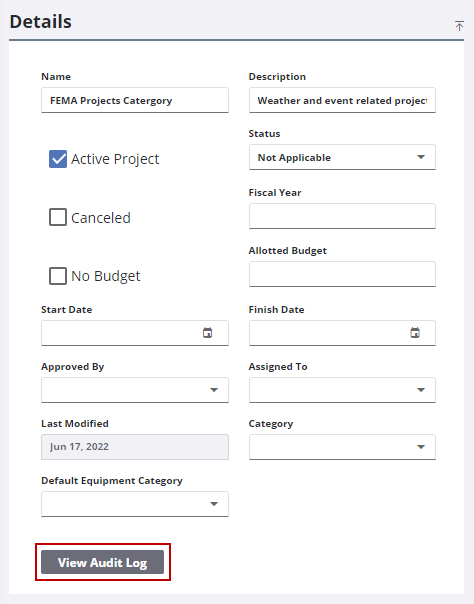
- On the bottom of the Details panel, click View Audit Log to view all changes that have been made to the project.
The Audit Log panel opens.
- Click Close on the lower-right corner of the panel when finished.