Split a Line Asset
Line assets can be split using the Split Line.
- Select the line asset to split on the map using the Legend and Selection tools. See Legend and Selection for more information.
-
- Select the asset in the map tool.
One end of the line is identified as point A and the other end of the line is identified as point B with a point in the middle.
 NOTE: When moving the center point of a selected asset, the line highlights and the center point snaps to the line. If two lines intersect, both lines highlight and the center point snaps to the point where the lines intersect.
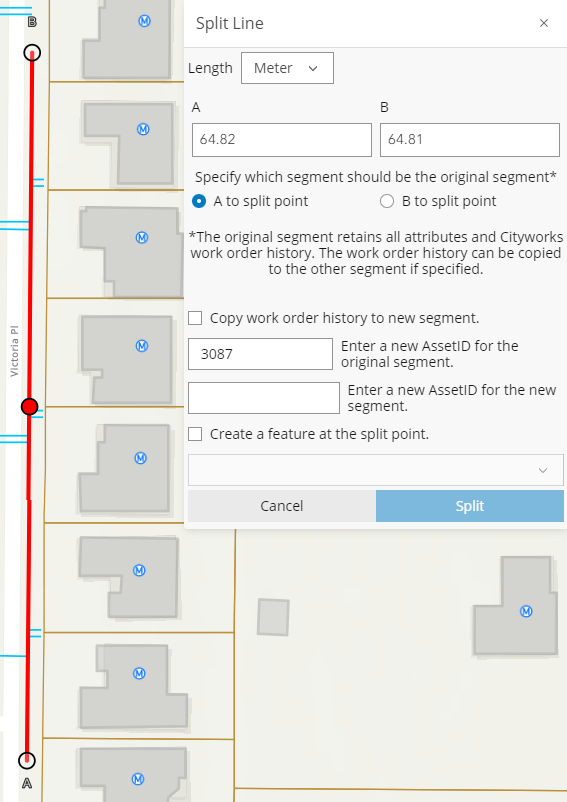
- Select the unit of measurement you would like to use from the Length drop-down list: either Meter or Feet.
The A field shows the distance between point A and the middle point, and the B field shows the distance between point B and the middle point.
- Adjust where the line is split by entering a different measurement in either the A field or B field. If you enter a different measurement in either the A field or B field, the red dot on the map is automatically repositioned to reflect the new measurement.
Determine which segment is the original segment. The original segment retains all attributes and work order history. The work order history can be copied to the other segment, if desired.
- Select A to split point if you wish for the segment from point A to the middle point to be the original segment. Select B to split point if you wish for the segment from point B to the middle point to be the original segment.
- If you want the work order history to be copied to the new segment, select Copy work order history to new segment.
- If desired, enter a new ASSETID for the original segment. By default, this field is populated with the original asset's ASSETID.
- Enter a unique ASSETID for the new segment that is being created.
- If desired, you can create a new feature at the split point. Select Create a feature at the split point and select the desired feature from the drop-down list.
-