Configure an Asset Curve
You can configure an asset curve.
- Open the Asset Curve Configuration page.
 NOTE: The first time you install
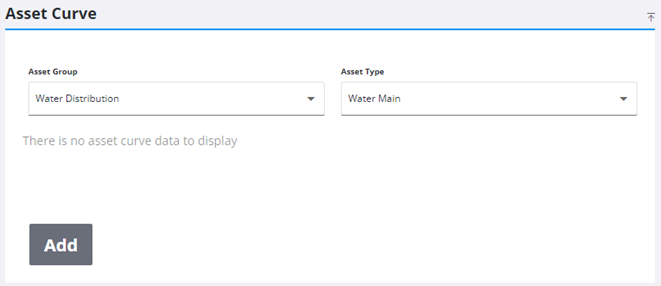
- Select the desired Asset Group and Asset Type. Once these fields are selected, the group and type are remembered across all pages of Operational Insights.
- Click Add.
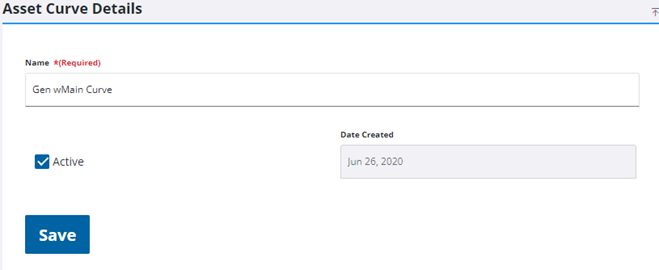
- In the Asset Curve Details panel, enter an asset curve Name.
- Select the Active check box to make the asset curve available.
- Click Save.
The Date Created field automatically populates.
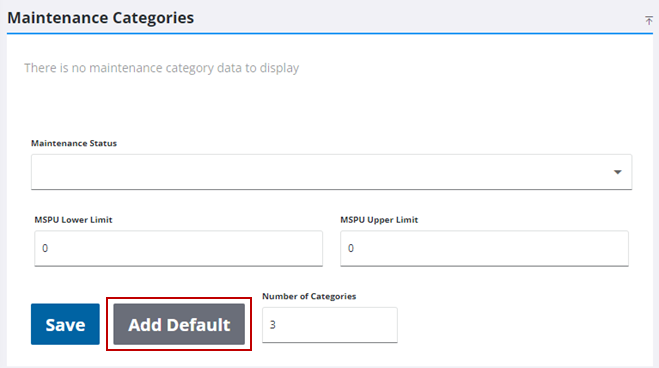
- In the Maintenance Categories panel, click Add Default to add preconfigured statuses that include MSPU ranges.
- Configure the MSPU Lower Limit and MSPU Upper Limit fields for each status, then click Save.
 BEST PRACTICE: The three default maintenance categories are the recommended option and are given as examples that can be modified by the user. For example, you can configure to have just one category or two, and the MSPU ranges can be modified from the default ranges.
- Alternatively, select a Maintenance Status from the drop-down list.
- Configure the MSPU Lower Limit and MSPU Upper Limit fields for the status and click Save.
- Select the check box of the maintenance category you want to configure.
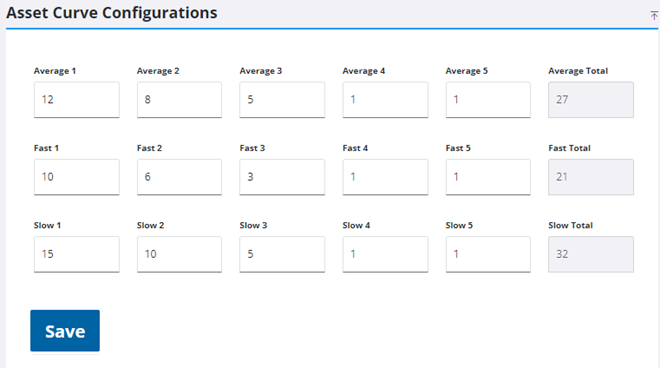
- In the Asset Curve Configurations panel, enter the desired information in the Average, Fast, and Slow fields.
NOTE: Estimated years for each stage must have a value larger than 0. An error displays when you try to save if there is a value of 0 in any of the fields. The total fields are a sum of the information entered in the fields within the row.
- Click Save.

A message displays saying the configurations are saved. See Asset Calculations for more information on performing the asset curve calculation.