Add an Asset Strategy
You can add an asset strategy.
- Open the Asset Strategy Setup page.
 NOTE: The first time you install
- Select the desired Asset Group and Asset Type. Once these fields are selected, the group and type are remembered across all pages of Operational Insights.
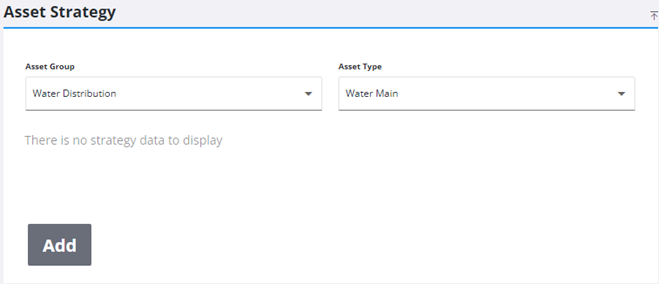
- Click Add at the bottom of the Asset Strategy panel.
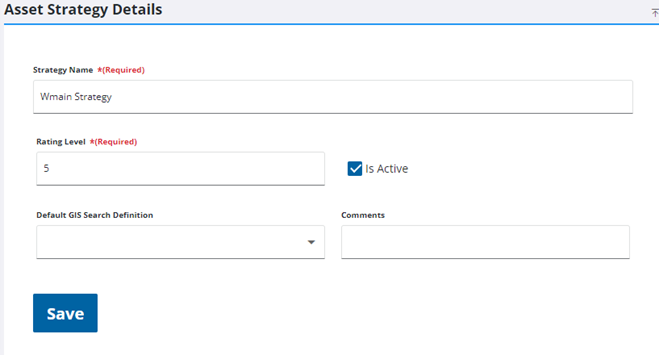
- In the Asset Strategy Details panel, enter a Strategy Name.
- Select a number for the Rating Level. This number is the highest number in the range that will be used for rating scores. The default is 5, which means the rating scores will use a range of 1 to 5.
- If desired, select a Default GIS Search Definition from the drop-down list. This filters the asset scores, asset curves, and maintenance scores that will be included in the calculation. If a GIS search is not selected, then all asset scores, asset curves, and maintenance scores will be included in the calculation.
 TIP: To clear the GIS selection from the list, select the empty field in the drop-down list.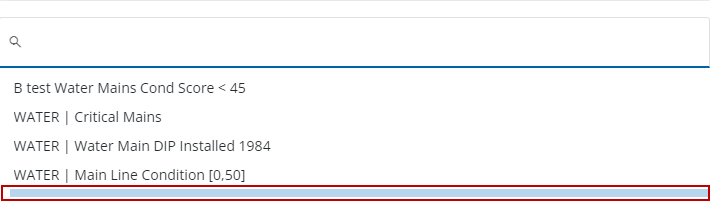
- If desired, enter any Comments regarding this asset strategy.
- Click Save.
The new asset strategy is displayed in the Asset Strategy panel.
- Select the asset strategy to finish configuring it.
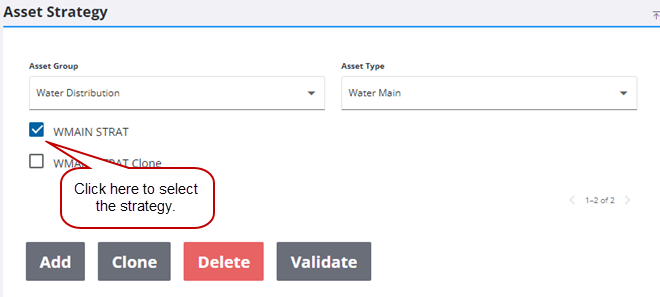
Now you can validate the asset strategy.