Add Maintenance Strategy
You can add a maintenance strategy.
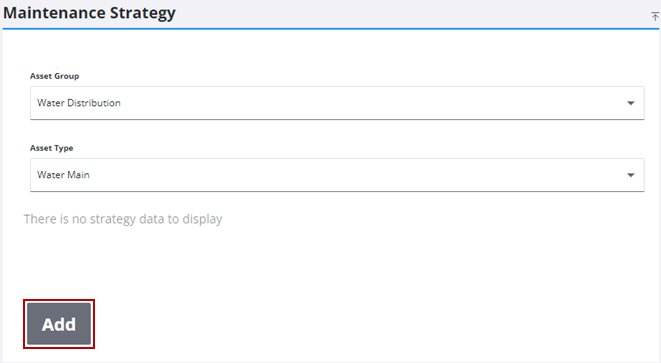
- Open the Maintenance Strategy page.
 NOTE: The first time you install
- Select the desired Asset Group and Asset Type. Once these fields are selected, the group and type are remembered across all pages of Operational Insights.
-
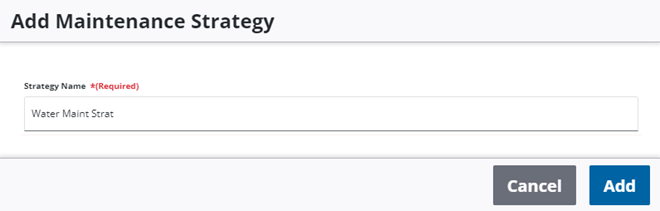
- In the Add Maintenance Strategy panel, enter a Strategy Name.
-
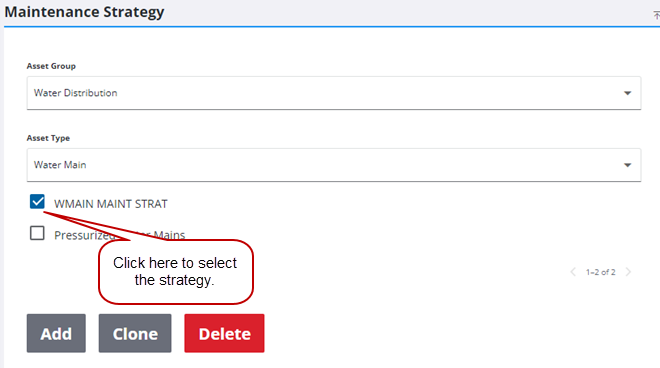
The new maintenance strategy is displayed in the Maintenance Strategy panel.
- Select the maintenance strategy to finish configuring it.
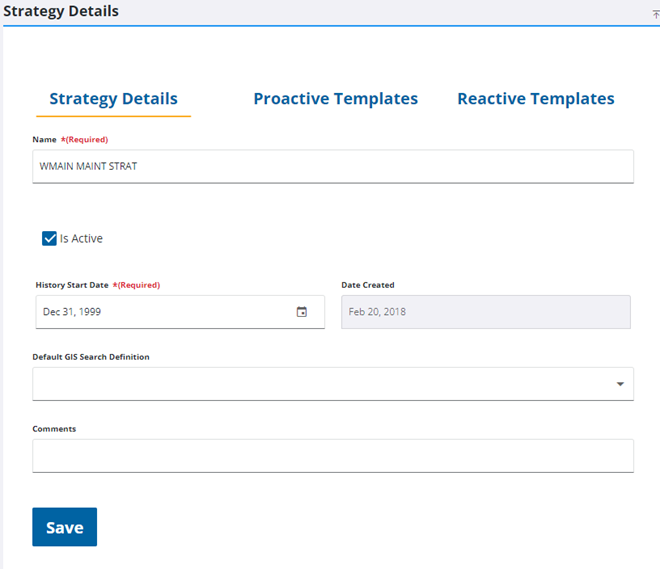
- In the Strategy Details panel, enter the History Start Date for the maintenance strategy. This is the starting date for the strategy and any work performed on the assets after this date are included in the analysis.
- If desired, select a GIS saved search from the Default GIS Search Definition drop-down list. This can be used if you want to configure different maintenance strategies for the same asset type based on attributes. For example, one maintenance strategy could be for water mains that are less than 20 inches in diameter and another maintenance strategy for water mains that are greater than 20 inches in diameter.
 TIP: To clear the GIS selection from the list, select the empty field in the drop-down list.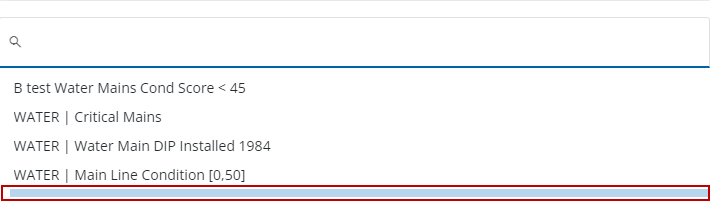
- If desired, enter any Comments regarding the maintenance strategy.
- Click Save.
The next step is to associate proactive and reactive work order templates to this maintenance strategy.