View Inspection History
You can view inspection history on a case, such as the inspector, the status, and the date the inspection was completed.
- Click the Add record icon on the Inspection Request panel to open the Inspection Schedule window.

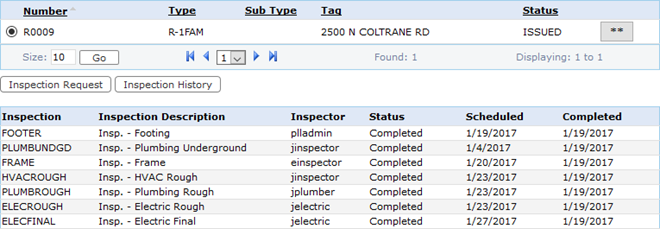
This opens a new tab in the browser and displays the case number, case type, tag, and status of the case.

- Select the case and click Inspection History.
The inspection history appears below. This history includes the inspector's ID, the inspection performed, and the date the inspection was scheduled and completed.
 NOTE: For more information about scheduling inspections, see Schedule an Inspection.

Documentation Feedback Form
Please give us feedback about this Cityworks guide.
If you have a feature enhancement request, please see the Ideas page on MyCityworks.
Last updated 4/13/2020.
Copyright© 2010–2020 by Azteca Systems, LLC. All rights reserved.