Add a Checklist Line Item
This section discusses how to configure new check list line items.
|
PREREQUISITES:
|
To add a new checklist line item to Cityworks PLL, follow these simple steps:
- Open PLL Admin.
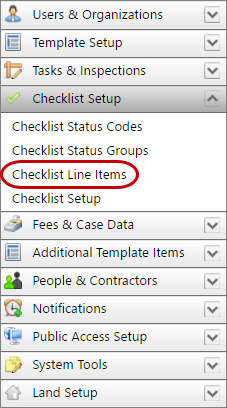
- On the PLL Admin page, click Checklist Setup on the PLL Admin menu panel and select Checklist Line Items.
- On the Checklist Items panel, click Add record at the top of the panel.
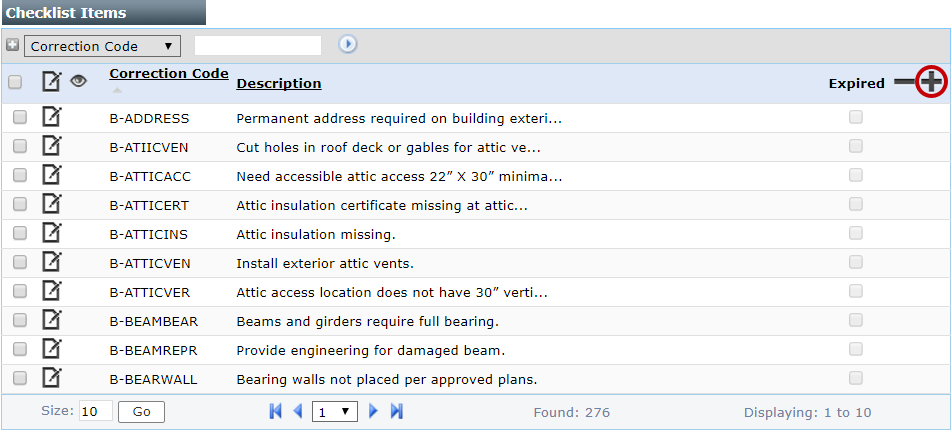
 NOTE: Search or filter the records on this panel to quickly find the one(s) you want. See Search and Filter Records for more information.
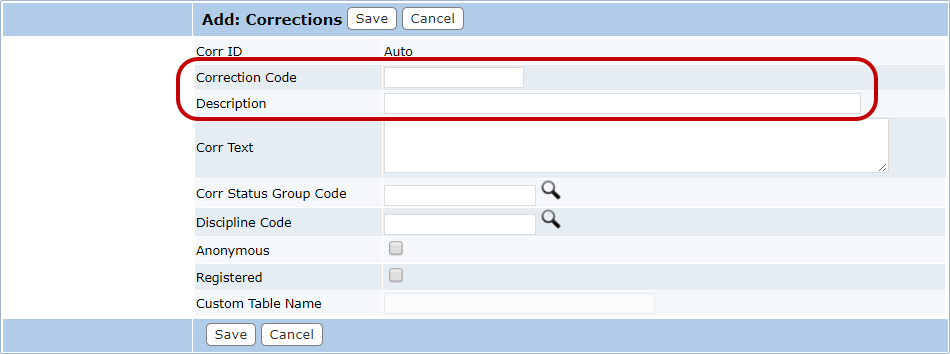
- On the Add: Corrections panel, enter a 10-character (maximum) name in the Correction Code field and a brief explanation in the Description field.
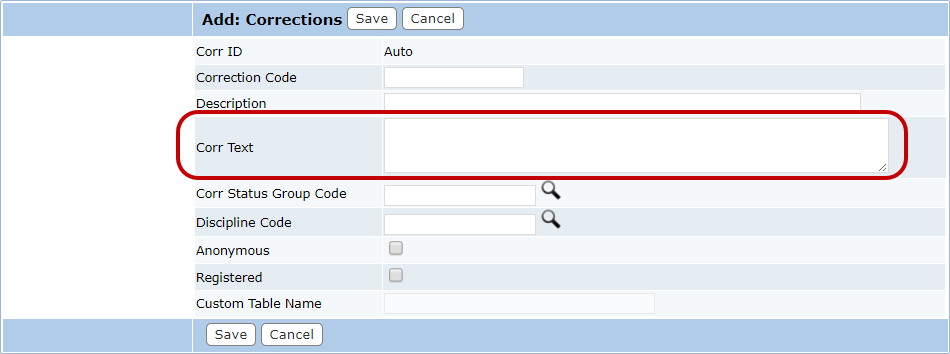
- In the Corr Text field, enter the nature of the problem and the steps necessary to correct it.
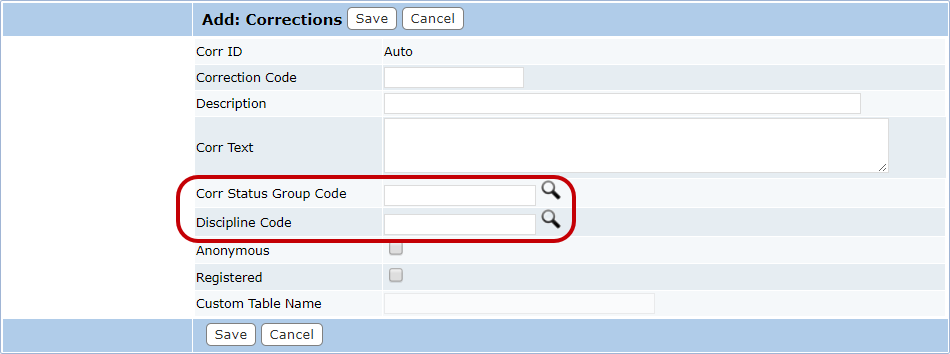
- Click Lookup to the right of the Corr Status Group Code and Discipline Code fields to select the appropriate correction status group and discipline codes.
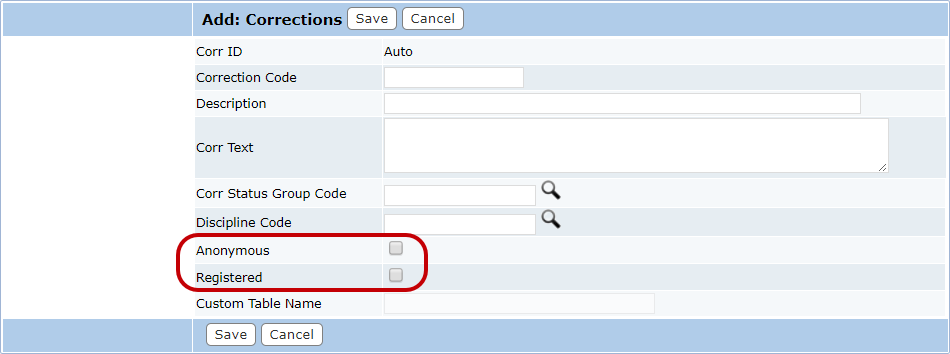
- Select the Anonymous check box to indicate the checklist line item will be available to unregistered Public Access users. Do likewise for the Registered check box.
- Click Save.
Documentation Feedback Form
Please give us feedback about this Cityworks guide.
If you have a feature enhancement request, please see the Ideas page on MyCityworks.
Last updated 1/6/2020.
Copyright© 2010–2019 by Azteca Systems, LLC. All rights reserved.