Edit a Contractor Type
Existing contractor types may be updated or changed at any time without having to create new contractor types to replace them.
|
|
 PREREQUISITES:
To edit an existing case template, follow these steps:
- Open PLL Admin.
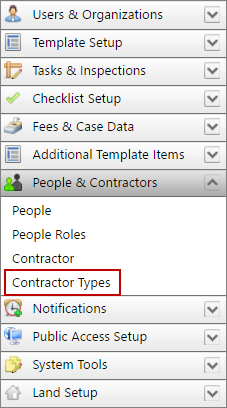
- On the PLL Admin page, click People & Contractors on the PLL Admin menu panel and select Contractor Types.
- On the Contractor Type panel, click Edit Record next to the item you want to edit.
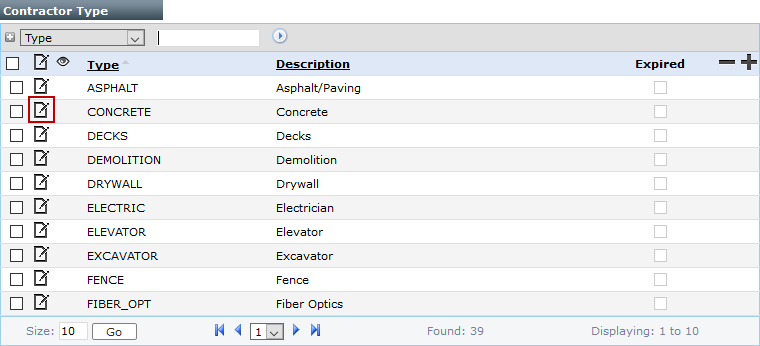
 NOTE: Search or filter the records on this panel to quickly find the one(s) you want. See Search and Filter Records for more information.
- When the Edit: Contractor Type panel opens, make any changes you desire. See Add a Contractor Type for more information.
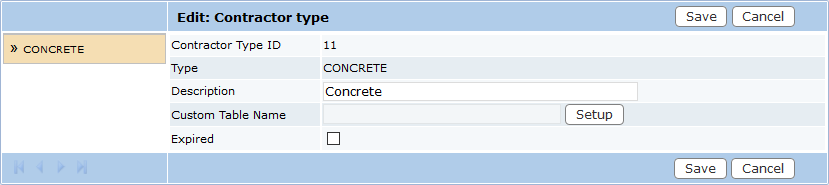
NOTE: The Edit: Contractor type panel contains the same information as the Add: Contractor type panel, with the addition of the Expired check box.
 IMPORTANT: The Custom Table Name field is available if you wish to include custom data in this contractor type. See Use the Custom Data Builder for more information.
- Click Save.