Configure Attachment Labels
Labels allow administrators to indicate on a case template what documents or other attachments are required or recommended. When users attach documents or images to the case, they can select a label to apply to the attachment.
|
PREREQUISITES:
|
 TIP: See Required Document Labels in Public Access for a help video on this subject.
To add a label to a case template, follow these steps:
- Open PLL Admin.
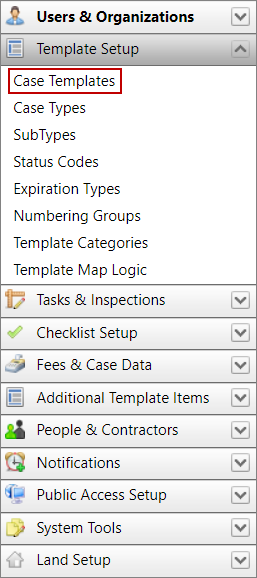
- On the PLL Admin page, click Case Templates on the PLL Admin menu and select Template Setup.
- Click Edit record next to an existing template.
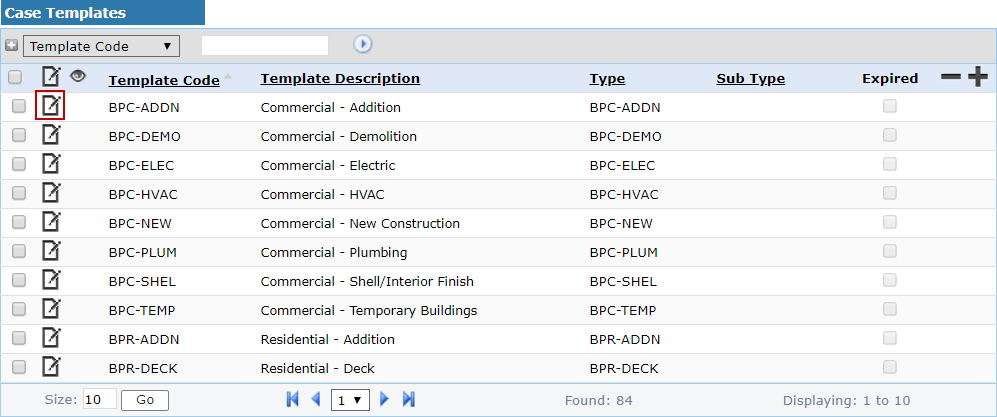
 NOTE: Search or filter the records on this panel to quickly find the one(s) you want. See Search and Filter Records for more information.
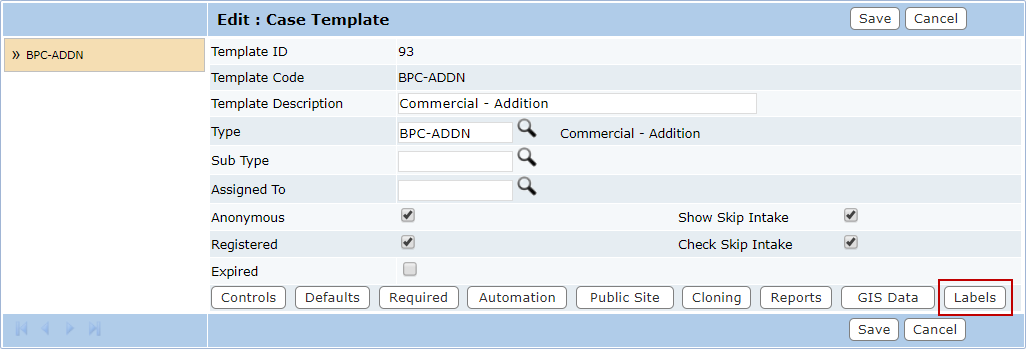
- When the Edit: Case Template panel opens, click Labels near the bottom of the panel.
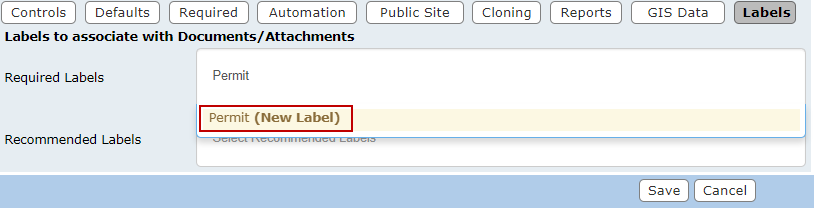
- Select the Required Labels or the Recommended Labels fields and enter a name for the label.
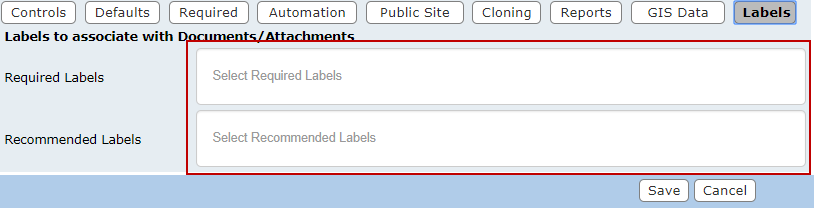
- After you enter a label name, click New Label.
- Click Save.