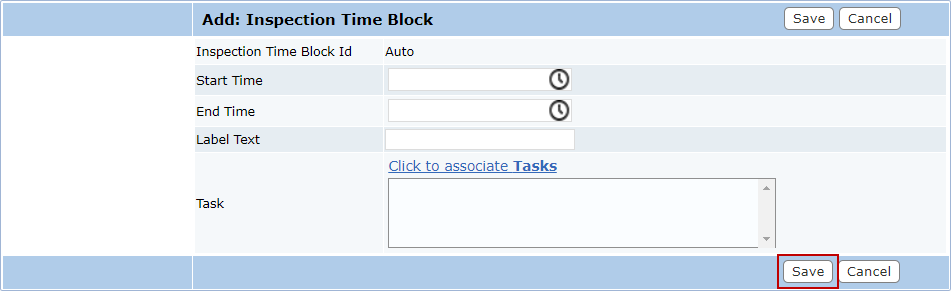
Add a Time Block
|
|
 PREREQUISITES:
To add a time block, follow these steps:
- Open PLL Admin.
- On the PLL Admin page, click Tasks & Inspection on the PLL Admin menu panel and select Inspection Time Block.
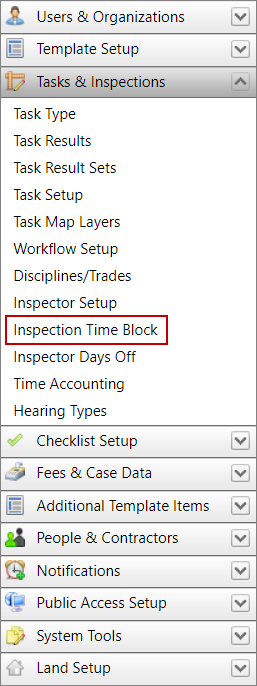
- On the Inspection Time Block panel, click Add record at the top of the panel.

 NOTE: Search or filter the records on this panel to quickly find the one(s) you want. See Search and Filter Records for more information.
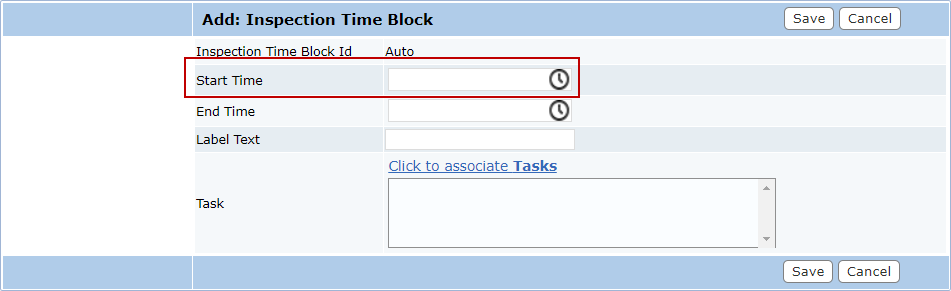
- Click the clock icon in the Start Time field to select a time.
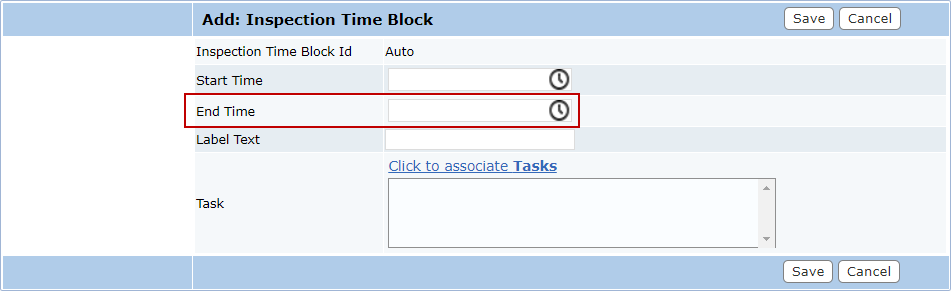
- Click the clock icon in the End Time box to select a time.
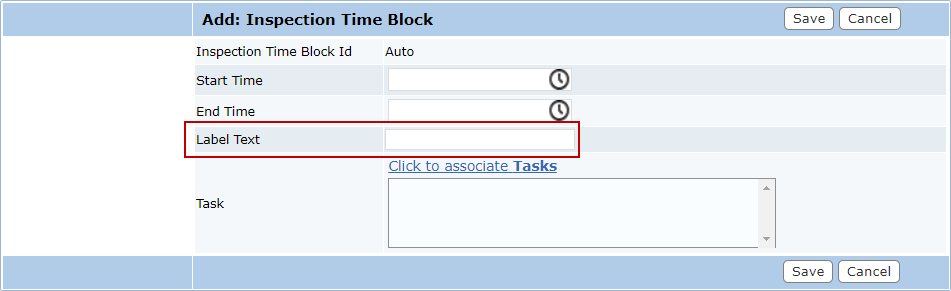
- Enter the name for this time block in the Label Text box.
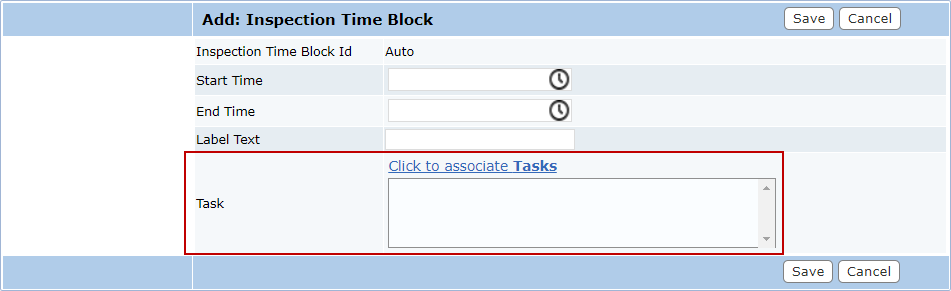
- Click Click to associate Tasks to select specific tasks that can be scheduled during this time block.
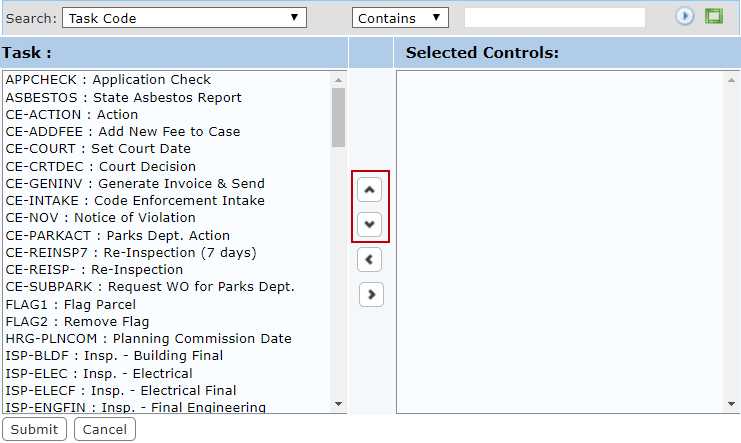
The new window contains two fields: a list of available items and a list of Selected Controls. The window also contains four arrow buttons.
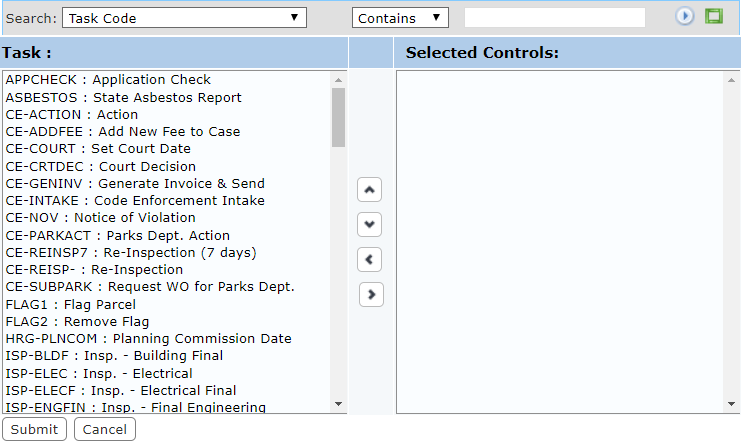
The field on the left displays all the available items. The field on the right lists which items are accessible to end users when they use this case template.
- Select items in the available items field by clicking on them.
 TIP: Use <Ctrl + click> or <Shift + click> to select multiple items.
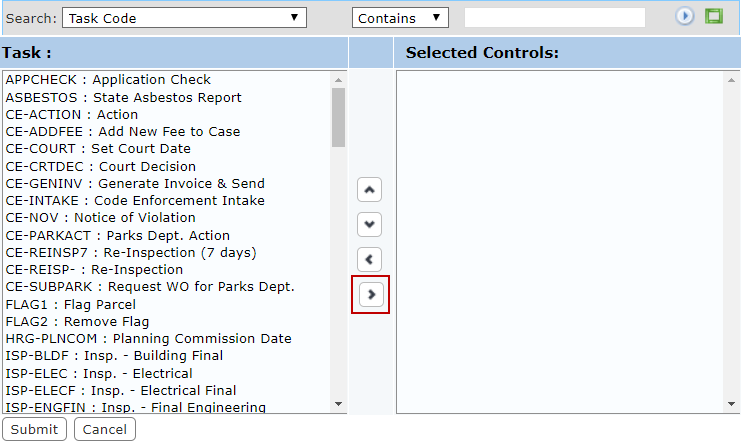
- When you have selected the items you want, click Move highlighted item(s) to Selected List to add them to the Selected Controls field.
Items may be removed from a template by selecting the item you wish to remove in the Selected Controls field and clicking Remove highlighted item(s) from Selected List.
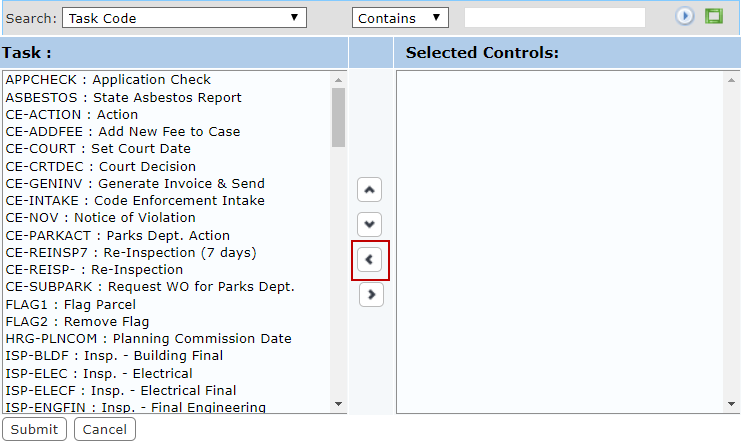
You can move an item up or down in the Selected Controls field by selecting the item you wish to move and then clicking Move selection up or Move selection down until the item is in the desired place. These items will appear on the Application Input and Summary pages in the same order as they appear in this field.
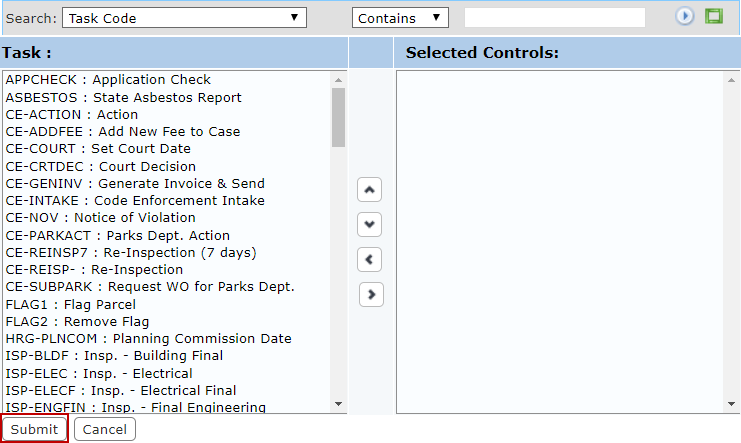
- Click Submit.
- Click Save on the Add: Inspection Time Block panel.