View a Task Group
The View option allows you to see more detailed information about a task group than is available on the main Workflow Setup panel.
|
|
 PREREQUISITES:
To view the details of a case template, follow these steps:
- Open PLL Admin.
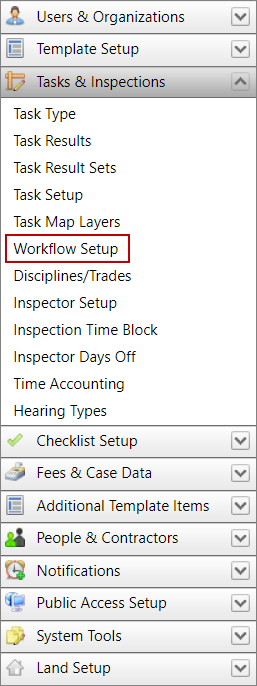
- On the PLL Admin page, click Tasks & Inspections on the PLL Admin menu and select Workflow Setup.
- On the Workflow Setup panel, select the check box next to the task group you wish to view, then click the View icon at the top of the panel.
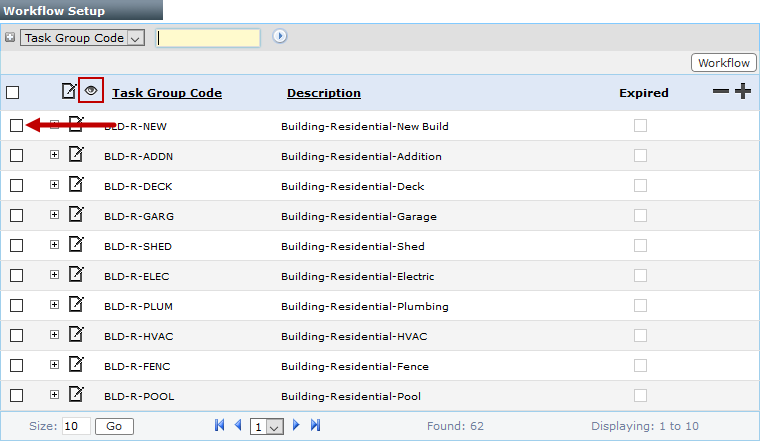
 NOTE: Search or filter the records on this panel to quickly find the one(s) you want. See Search and Filter Records for more information.
- The View: Task Group panel displays all the basic information about the task group.
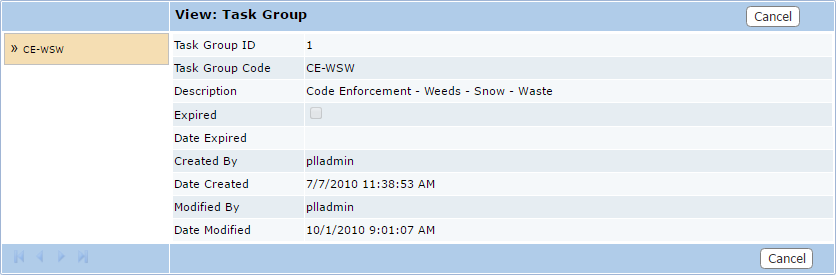
- Click Cancel to close the View: Task Group panel.