Reset a User's Password
PLL administrators may need to reset a user's password from time to time. This section will discuss how to do so.
|
|
 PREREQUISITES:
To reset an external user's password, follow these steps:
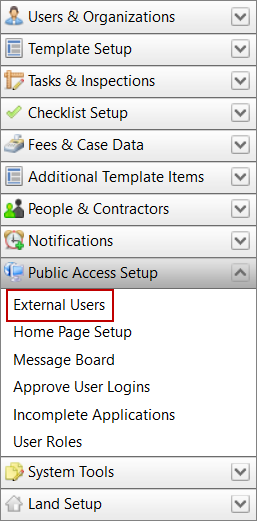
- Click Public Access Setup on the PLL Admin menu penal and select External Users.
- On the main panel, select the check box next to the appropriate login ID and click Password Reset.
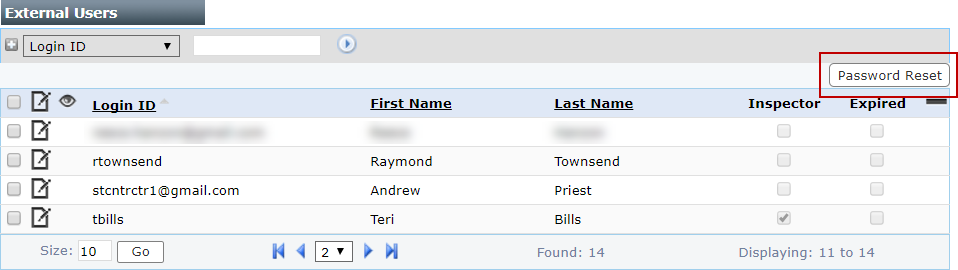
 NOTE: Search or filter the records on this panel to quickly find the one(s) you want. See Search and Filter Records for more information.
- You will receive a message that the password has been reset.

Cityworks will now send an email to the user with a link to reset their password.