Manually Approve User Login Requests
By default, a PLL administrator must approve each application for a Public Access login ID. This panel is the tool that allows you to approve or deny those requests. Select Approve User Logins from the Public Access Setup menu to display a list of pending login ID requests.
 IMPORTANT: Due to the implementation of automatic registration for Public Access users, this page should no longer be used. For more information, see Enable Automatic Account Registration and Password Management.
|
|
 PREREQUISITES:
To manually approve requests for Public Access login IDs, follow these steps:
- Click Public Access Setup on the PLL Admin menu panel and select Approve User Logins.
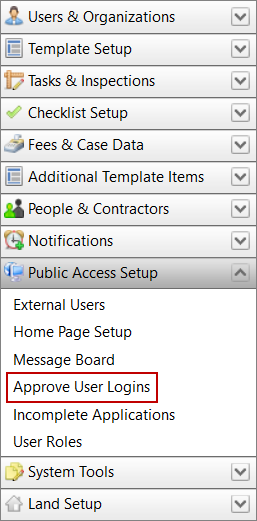
- On the Approve User Logins panel, click Edit next to the request you wish to approve.

- On the Edit: Approve User Logins panel, click Lookup next to the Security Roles field to select a security role for the user.

- Use the drop-down list to assign the new user to an organization.
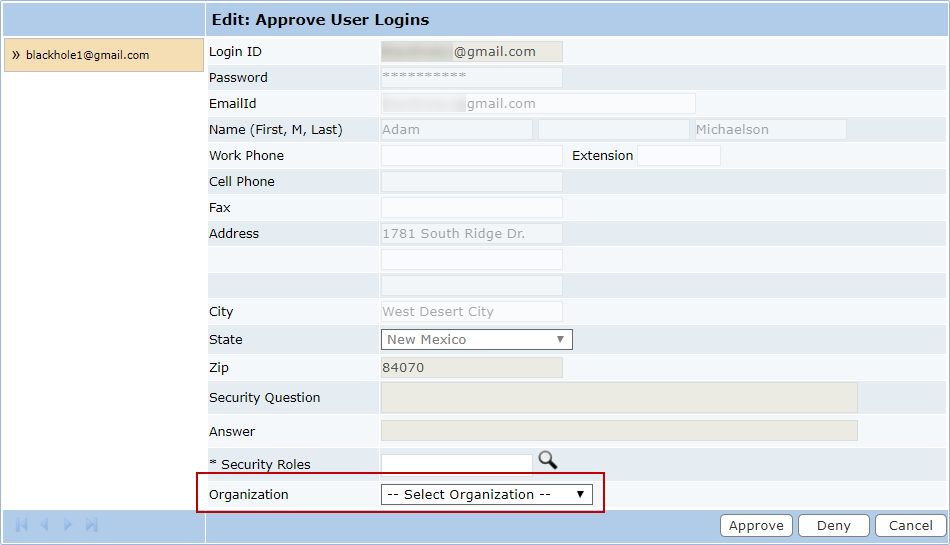
- Click Approve.