Edit a Line Item from a Checklist
Existing line items attached to a checklist may be updated or changed at any time without having to create entirely new line items to replace them. The following steps will walk you through the process of editing an existing line items.
|
|
 PREREQUISITES:
To edit an existing line item, follow these steps:
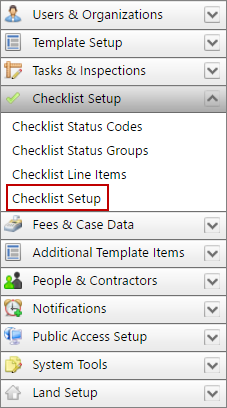
- Click Checklist Setup on the PLL Admin menu panel and select Checklist Line Items.
- On the Checklist Setup panel, expand the checklist you wish to edit.
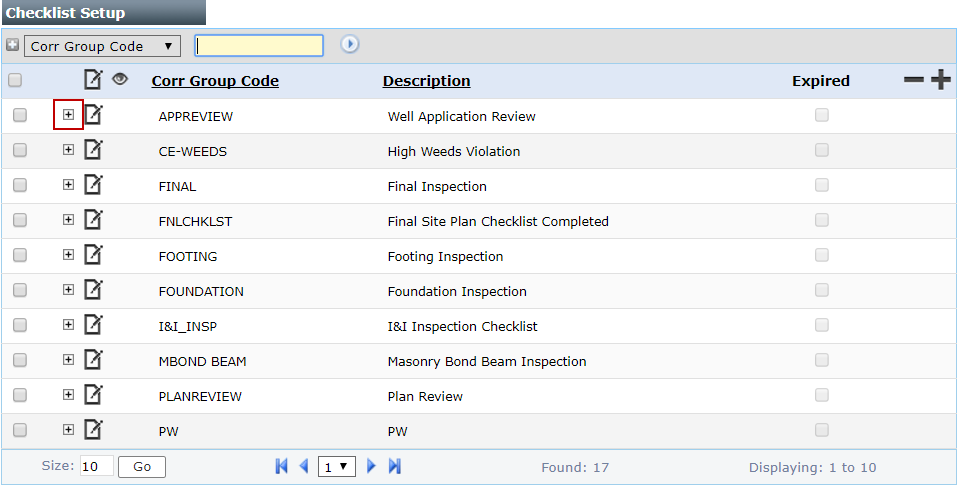
 NOTE: Search or filter the records on this panel to quickly find the one(s) you want. See Search and Filter Records for more information.
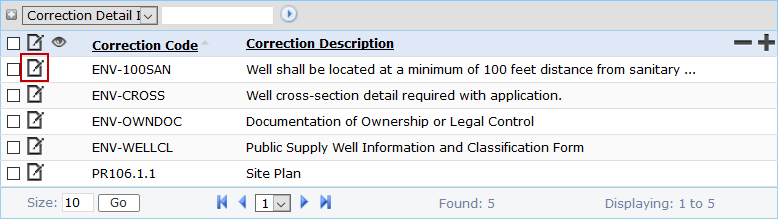
- Select the check box next to the line item you wish to edit, then click the Edit record icon.
- On the Edit: Correction Group Detail panel, make any changes you desire. See Add a Line Item to a Checklist for more information.

NOTE: The Edit: Correction Group Detail panel contains the same information as the Add: Correction Group Detail panel.
- Click Save.