Fee Setup Fields
This section covers all the fields contained in the Add: Users and Edit: Users panels.
 NOTE: The Edit: Users panel contains all the items displayed on the Add: Users panel as well as a few additional items. Therefore, only the Edit: Users panel is displayed and explained here.
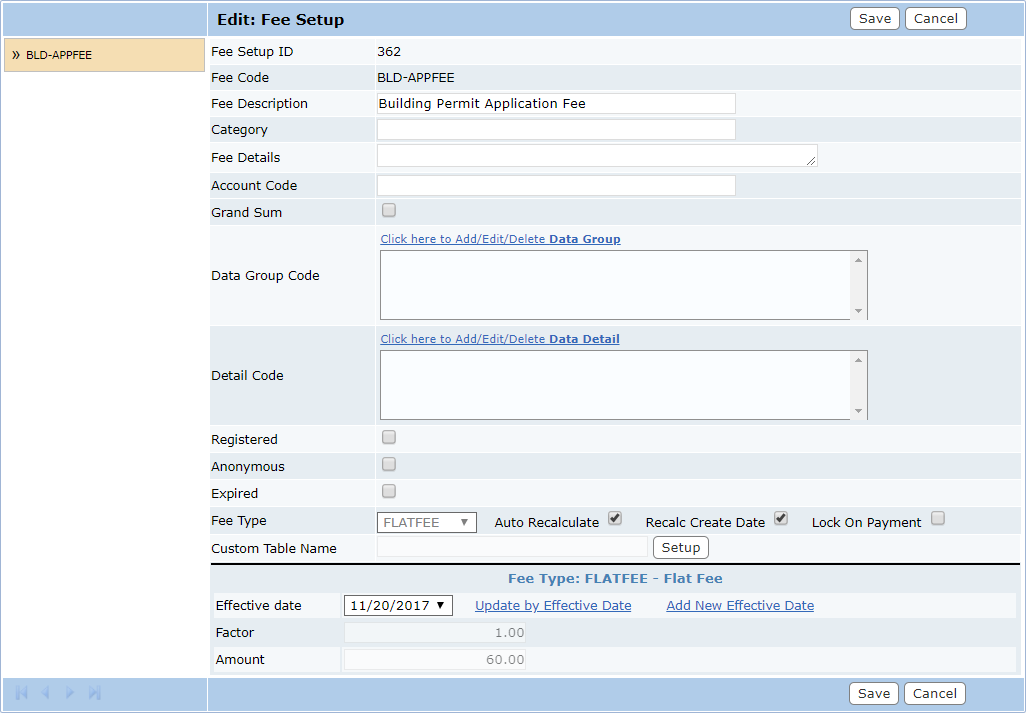
- Fee Setup ID: This element is automatically populated when the fee setup is saved. This field cannot be changed.
- Fee Code: This is the name by which the fee will be referenced in the database and listed in drop-down lists and selection windows. This field cannot be changed.
- Fee Description: Enter a brief explanation of the fee here.
- Category: This is an optional organizational tool and is not associated to any particular database table.
- Fee Details: A more detailed explanation of the fee, including purpose, method of calculation, variables, relevant portions of city code, etc.
- Account Code: Optional, the account into which the fee will be paid.
 IMPORTANT: Only one of the following three check boxes can be used (Grand Sum, Data Group Code, or Detail Code). Once you select one, the others will be unavailable.
- Grand Sum: If this check box is selected, the value used to calculate the fee will be linked to the Grand Sum check box on the Case Data panel of the permit.
- Data Group Code: If a data group is associated to a fee code, the value used to calculate the fee will be linked to the Group Sum check box on the Case Data panel of the permit. Click the link above the field to open a selection window if you wish to provide a data group.
- Detail Code: If a data field is associated to a fee code, the value used to calculate the fee will be linked to the Group Sum check box on the Case Data panel of the permit. Click the link above the field to open a selection window if you wish to provide a detail code.
- Anonymous: This fee controls whether or not the fee will be added to cases created in Public Access by guest users. If this check box is not selected, the fee will not be added to cases created in Public Access.
- Registered: This fee controls whether or not the fee will be added to cases created in Public Access by registered users. If this check box is not selected, the fee will not be added to cases created in Public Access.
- Auto Recalculate: If this check box is selected, it means that every time the form is opened, this fee will automatically be recalculated.
- Recalc Create Date: If this check box is selected, the fee will be recalculated based on the date the case or permit was created and the fee structure that was in place on that date. If not selected, the fee will be recalculated based on today’s date and today’s fee structure. For example, a case was created December 15, 2016, but the organization implemented a new fee structure that went into effect January 1, 2017. If Recalc Create Date is selected and the administrator opens the case on January 23, 2017, the fees will not change because this setting ensures that the fees are calculated using the fee structure that was in place on December 15, 2016. If Recalc Create Date is not selected and the administrator opens the case/permit on January 23, 2017, the fees will be recalculated based on today’s fee structure (the one that went into effect January 1, 2017).
NOTE: If both Auto Recalculate and Recalc Create Date are selected, the system will automatically recalculate the fee whenever the form is opened based on the fee structure that was in place on the date the case or permit was created.
- Lock On Payment: If this check box is selected, the fee amount will be locked when a payment is made on that fee, regardless of whether or not they pay the entire fee or just part of it. If not selected, the fee amount can change. This is a per-fee basis, so administrators can set this for each individual fee if desired.
- Fee Type: Specifies the method used to calculate the total fee.
- Custom Table Name: This option allows administrators to create custom data tables in the Cityworks database; this is useful for tracking information not normally stored in the database. Click Setup to open the Custom Data Builder. See Use the Custom Data Builder for more information.